

Handle your first case from start to finish
Practice the entire support lifecycle with Harbor Manufacturing and its contact’s request, “Monthly report export fails.” The goal is to demonstrate intake, ownership, a customer r
Required · Practice and finish setup
Practice the entire support lifecycle with Harbor Manufacturing and its contact’s request, “Monthly report export fails.” The goal is to demonstrate intake, ownership, a customer response, an internal note, a handoff, resolution and actual closure.
A case is the request; an activity is a reply, note or other entry within it. Keep a case ID so you can verify the same record throughout.
Before you begin
Have an administrator and an intended agent complete this together. The agent needs permission to create/read cases, add the required activities, transfer work and close the case. Confirm the customer records, division, queue and forms are ready.
Use an authorized controlled mailbox to test actual messages. With fictional [email protected], practice through an internal activity or Save draft; do not claim delivery. Creating a case can send mail when the selected activity type and recipients call for it.
1. Create or receive the request
For a selected live channel, submit the controlled test request through email, portal or chat and locate its resulting case. This tests intake.
For manual practice:
- Use the global New → Case menu (or New case from Cases).
- Use Search by company name, contact, or email to select Harbor and the correct contact. Confirm both displayed relationships.
- Choose the intended Division, Issue, Priority and Activity type.
- Enter Subject: Monthly report export fails.
- In the body, write the facts: “Harbor’s monthly report fails when exported as CSV. The report opens normally. The failure began today. Please help us confirm the next diagnostic step.” These are fictional training facts.
- Fill the displayed required fields, including Export format if you added it.
- For a safely unsent exercise, select a verified internal/non-email type and inspect recipients, or select Save draft.
- Use More options to review Case state, Assign to agent or Assign to queue. Choose the intended receiving queue; selecting an agent and queue here are alternative assignment choices.
- Select Create case only after checking its actual activity type, recipients and assignment.
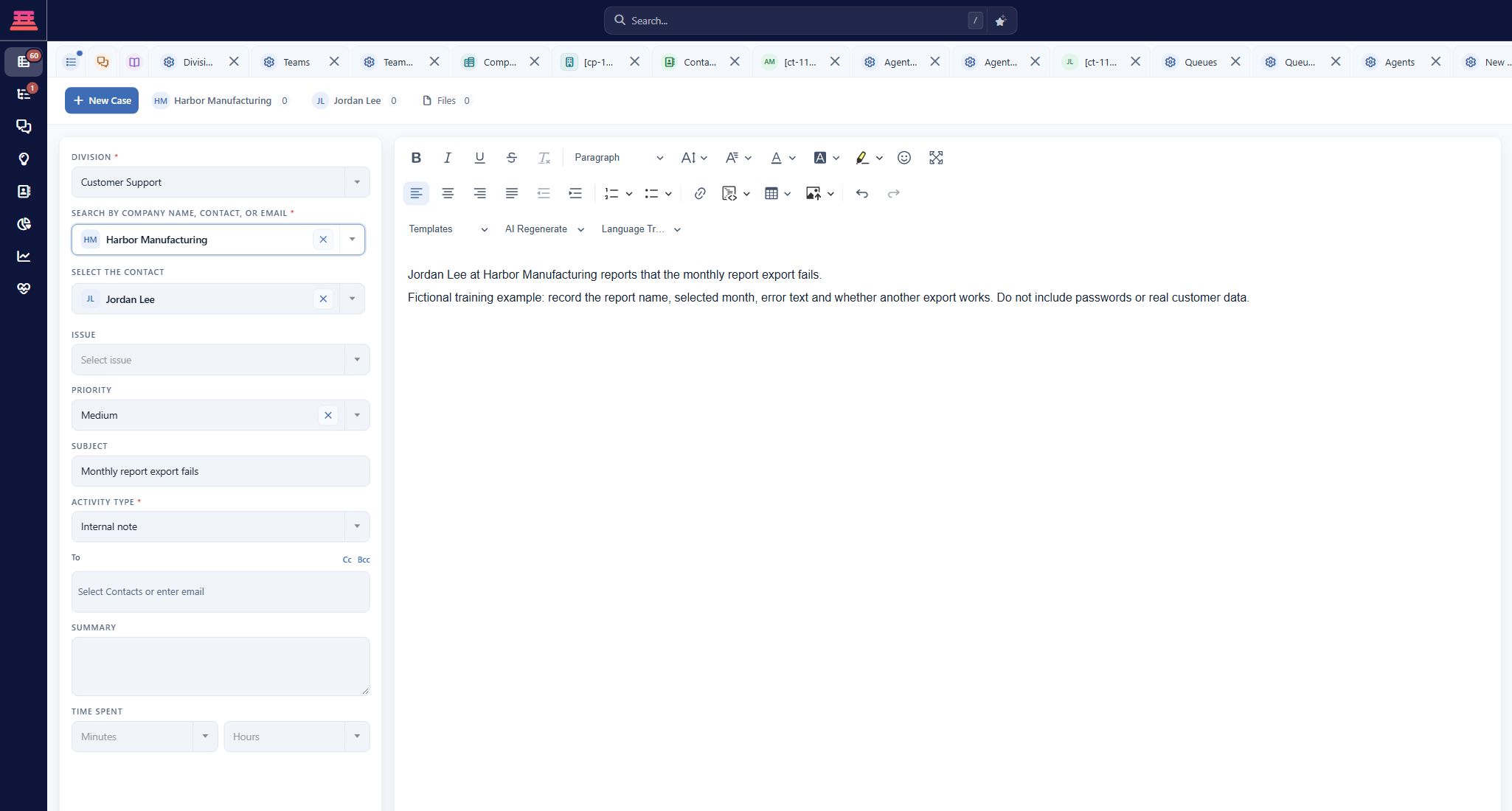
Populated, unsaved manual case example for Harbor Manufacturing; Internal note is selected and recipients are empty.
Reopen the resulting case. Confirm its ID, subject, company/contact, classification, status and queue/owner. A draft is a different result from a committed support case.
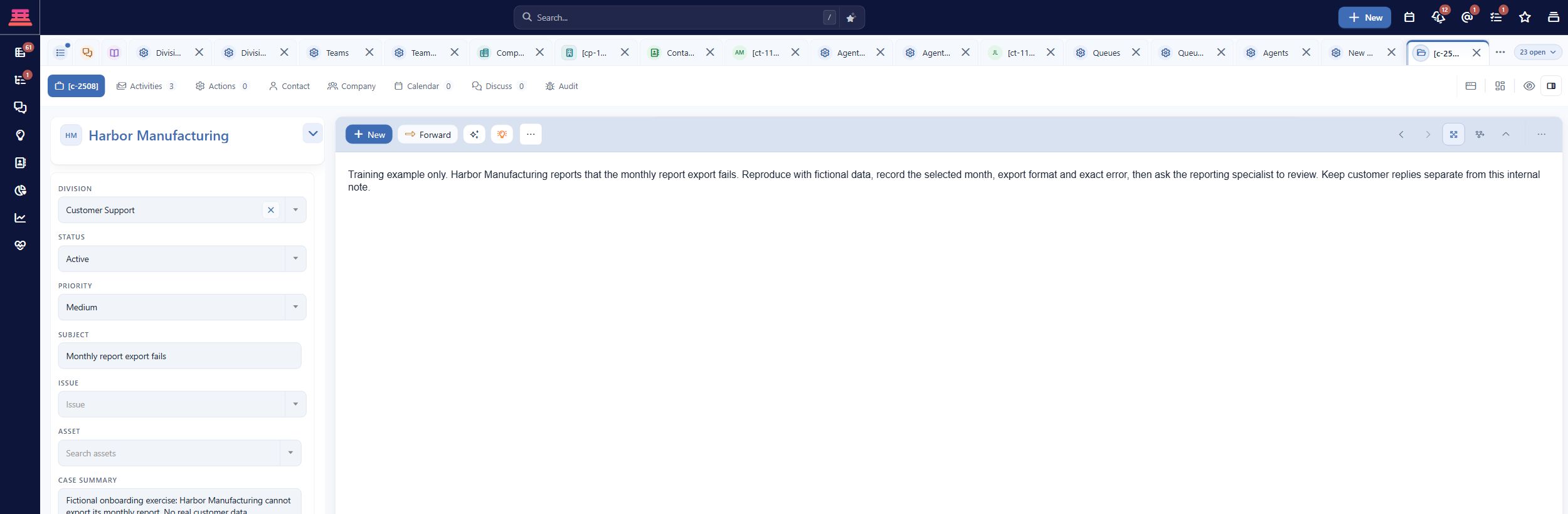
Saved practice case with its internal investigation note. Personal author details are collapsed using the application controls.
2. Establish ownership and the next action
Open Choose owner or queue. To take responsibility yourself, use Grab this case myself. To hand it to a colleague or queue, select the intended destination in Assign 1 case and use Transfer case. For a queue handoff, confirm Transfer to queue when the Transfer Item(s) prompt appears.
Confirm the resulting owner/queue on the case. A queue is a monitored destination, not a named person. Inspect SLA response and SLA closure where present and decide who owes the next update. Daily support work explains the operating routine.
3. Prepare a customer reply
- In the activity pane, select New. If Grab case appears for an unowned queue case, choose Assign to me when taking responsibility, or Leave in queue when that is your intended process. Then set Activity type to Email - Outgoing for an email reply.
- Inspect Reply Address, To/Cc/Bcc and any added recipients.
- Write a clear response, for example: “Thanks for reporting this. Please confirm the report name, the error text and the time of the failed CSV export. We will use those details to reproduce the problem.”
- Review the complete body and signature.
- Select Save draft for the fictional-only exercise. If using an authorized controlled recipient, select Send email and verify the actual received message.
- Reply from the test customer mailbox when testing email and confirm that it returns to this same case.
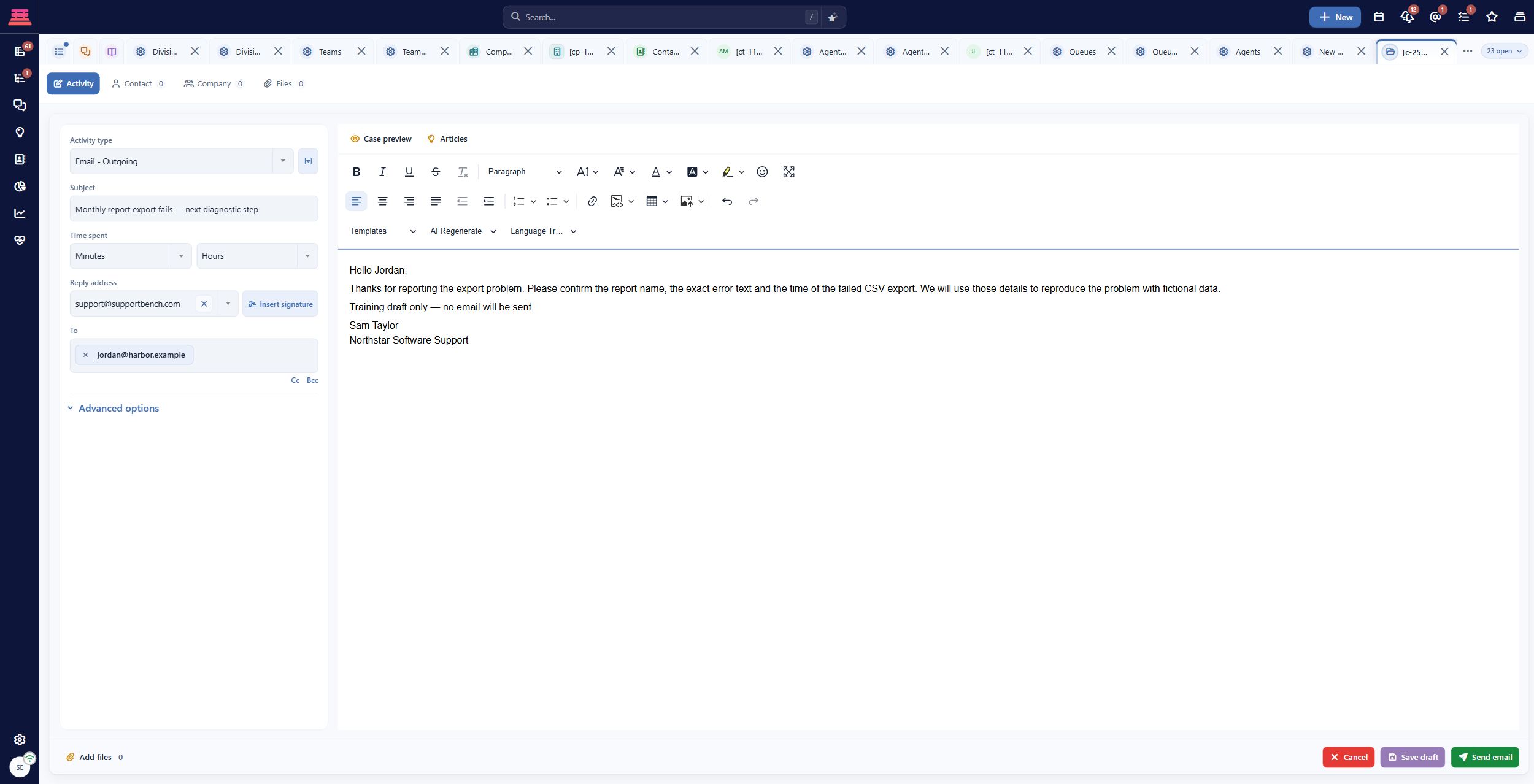
Outgoing-email composer with a fictional recipient and a training draft. The screenshot was captured before Save draft; Send email was not used.
A saved draft, a scheduled message and a delivered reply are different outcomes. Record which one you verified.
4. Add an internal note
- In the activity pane, select New, then choose Internal note in Activity type.
- Write a useful handoff note, such as: “Training investigation: confirm report name and export error. CSV is affected; report viewing works. No root cause or fix has been verified.”
- Leave To, Cc and Bcc empty for a note that must stay inside the workspace. Core can email the contents of an internal activity to recipients entered here; the internal-note label alone is not a guarantee that no email is sent. Then select Add internal note.
- Reopen the activity and confirm its content and visibility. If a customer portal is selected, verify the customer cannot read it.
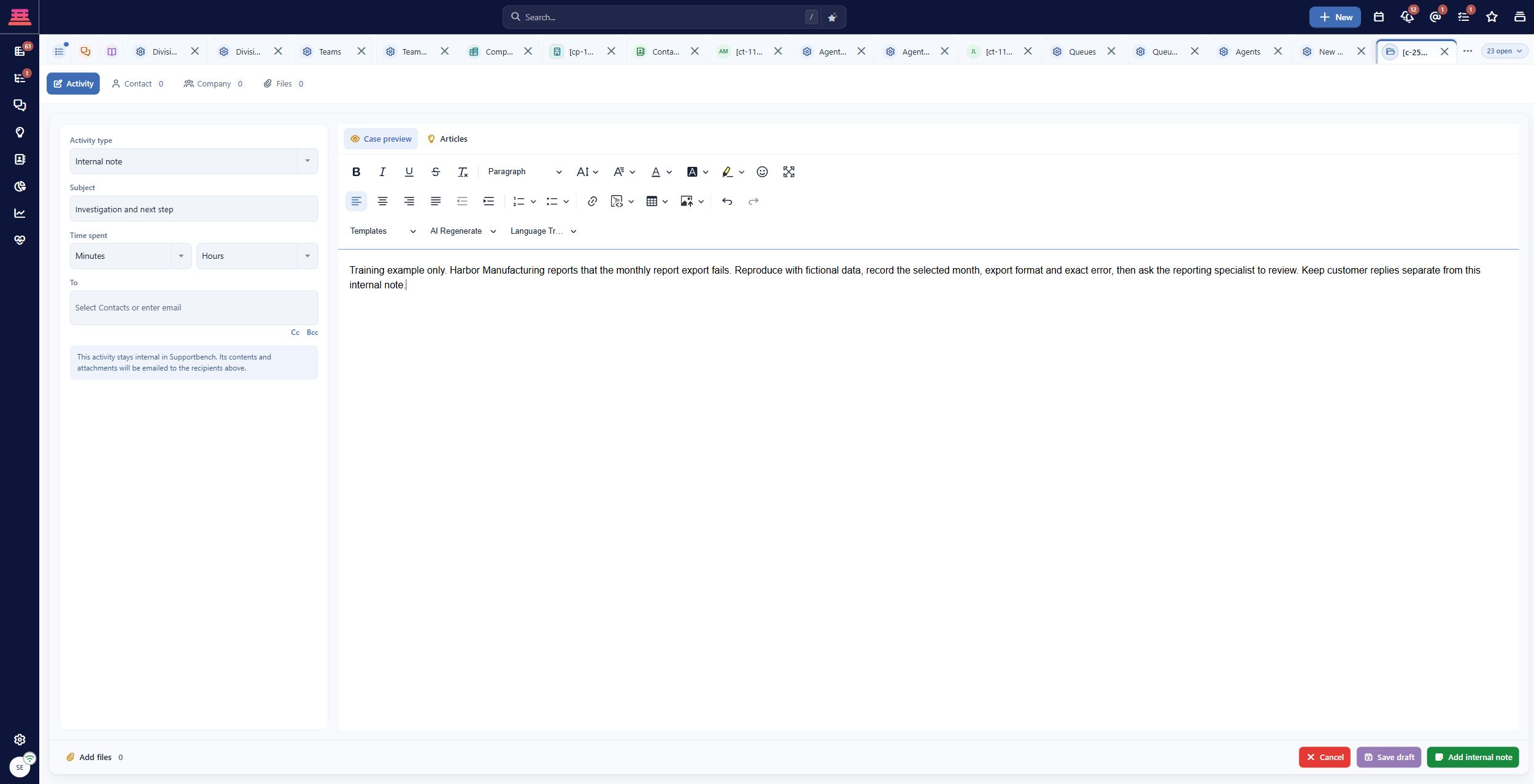
Unsaved internal investigation note with no email recipients. Confirm the audience and recipients before adding a note.
Do not copy private diagnostic information into a customer email simply because it is already on the case.
5. Hand work to another agent
Add a concise internal handoff: facts, steps tried, open questions, deadline and the help requested. Use Choose owner or queue, select the intended receiving agent/queue and Transfer case. Review watcher options deliberately; watching a case and owning its next action are different.
Have the receiving agent open the case, find the note and confirm their next step. Check the final owner and any SLA change. If escalation is part of your process, test the configured escalation path as well.
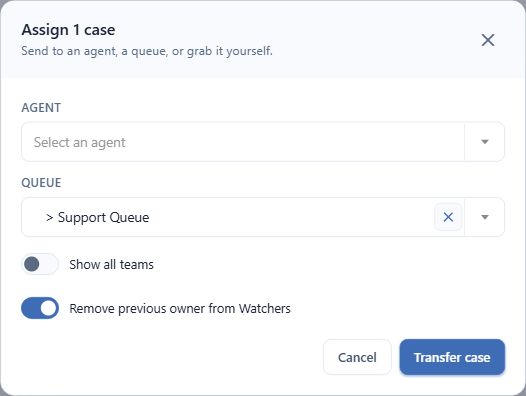
Unsaved handoff to Support Queue. Remove previous owner from Watchers is selected in this example.
6. Resolve, reuse knowledge and close
- In the exercise, have the test customer confirm a harmless agreed outcome. Do not claim a product fix that was not performed.
- Record what was checked and the confirmed result. Use a reviewed knowledge article if it explains the relevant procedure, and verify the customer can read its link.
- Send or draft the final customer explanation according to your test boundary.
- Change the case Status to Closed. This opens Close Case.
- Complete Outcome and any closure-policy fields. Review Close and choose Close now for an immediate practice closure.
- Select Close Case, then reopen/read the case and verify it is actually Closed.
- If reopening is needed, change Status to an appropriate active state and verify it. A non-draft activity on a closed case can also reopen it; inspect state before adding follow-up work.
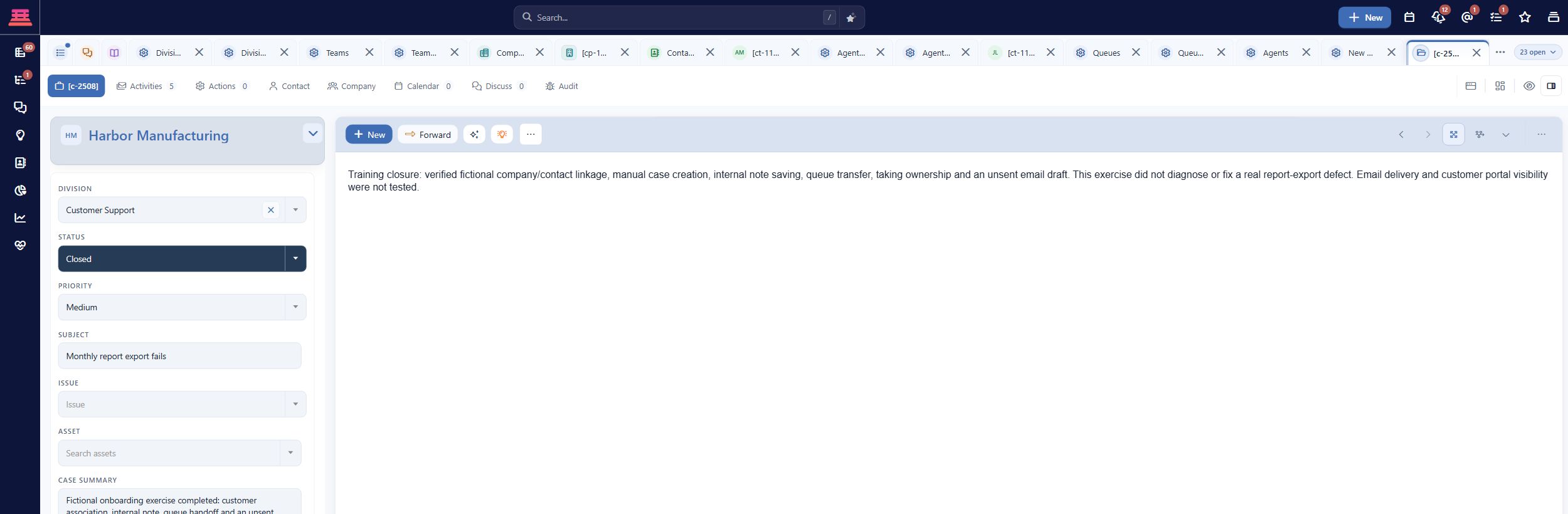
Saved fictional practice case with Status Closed; delivery and portal visibility remain untested.
Work a case through resolution covers operational variants; SLA commitments explains deadline interpretation.
Recover a failed step
If customer records are wrong, correct the association before communicating. If the reply goes nowhere, inspect the actual recipient, sender and delivery evidence. If a colleague cannot access the handoff, check role, division and queue access. If Close Case rejects the action, complete the visible required closure fields and check close permission. If the case reopens, inspect the later activity or workflow rather than repeatedly closing it without understanding why.
Completion check
- Intake produced the intended case, or manual creation was explicitly tested.
- Ownership and next-update responsibility are clear.
- Customer reply and internal-note audiences were distinguished.
- Handoff was accepted by another agent.
- Resolution evidence and knowledge reuse were reviewed.
- Actual Closed state was verified.
- Delivery, portal and optional-channel tests are recorded separately from drafts.
Previous: Azure DevOps · Next: Account readiness checklist
Updated 27 minutes ago