

Add companies and contacts
Represent the customer organization and the person requesting help before practicing case handling.
Required · Organize your support team
Represent the customer organization and the person requesting help before practicing case handling. A company is the customer business. A contact is a person associated with that business. Your Supportbench account remains your own support organization.
Before you begin
Use an agent with permission to create and edit companies and contacts. Decide which details your team needs for support. Search first to avoid duplicates. For the walkthrough, use fictional Harbor Manufacturing and Jordan Lee, with [email protected]. The .example address is deliberately non-deliverable; replace it with an authorized controlled mailbox only for a real delivery test.
Creating these records does not by itself invite a customer to the portal.
Add the company
- Open Customers → Companies in the main navigation.
- Search for Harbor Manufacturing. If a correct existing record is present, open it and reuse it.
- Otherwise select New Company.
- Enter Name as Harbor Manufacturing. Add only useful, fictional training details in other fields; leave unneeded optional fields empty.
- Select Create Company and wait for the result.
- Find and reopen the saved company. Confirm the name before adding its contact.
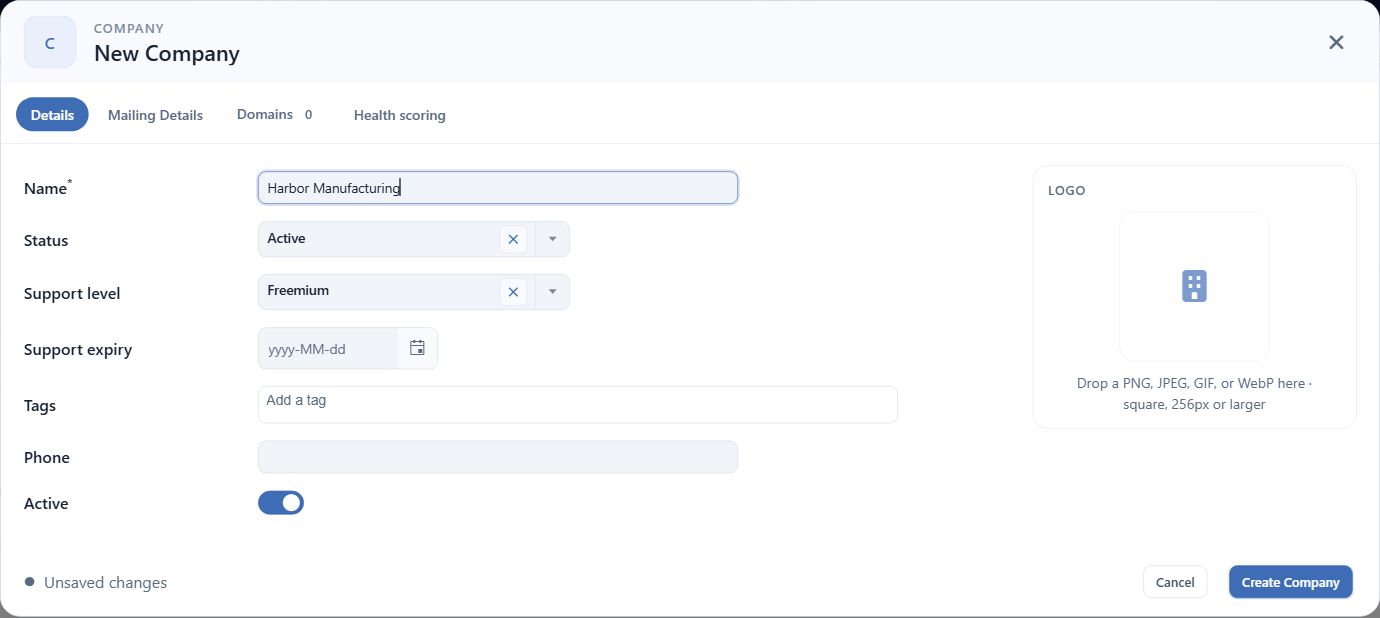
Unsaved fictional Harbor Manufacturing company form in Supportbench Core.
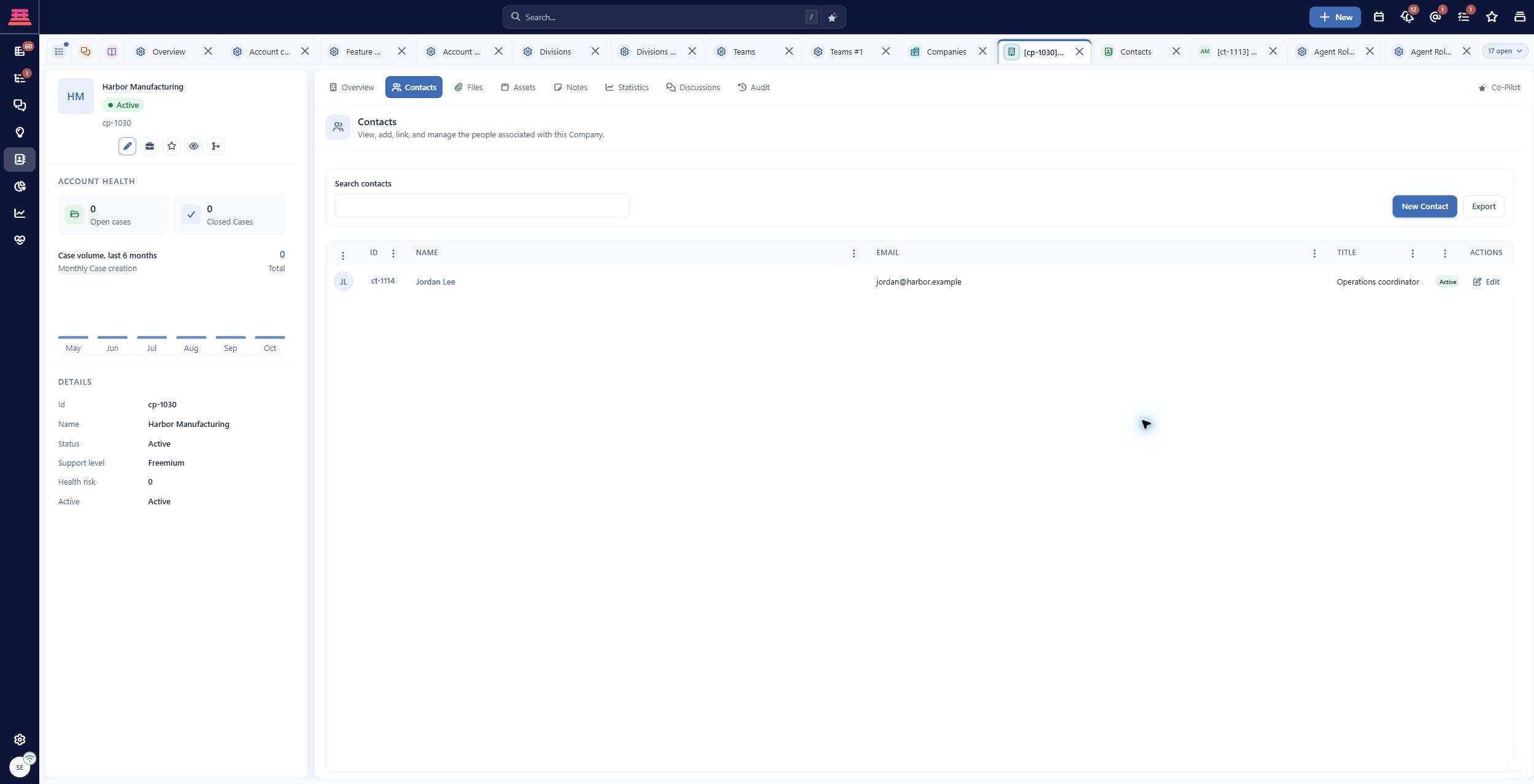
Saved Harbor Manufacturing company with its fictional contact Jordan Lee.
Add the contact
- Open Customers → Contacts and search for the intended email address. Reuse the correct person if already present.
- For a new person, return to Customers → Companies, open Harbor Manufacturing, and select its Contacts tab.
- Select New Contact from this company’s Contacts tab. Creating the contact here associates the saved person with this company.
- Enter First name as Jordan, Last name as Lee, Email as [email protected], and optionally Title as Operations coordinator.
- Leave optional phone and secondary email fields empty for this exercise. Use Add secondary email only for another verified address belonging to the same person.
- Select Save contact and wait for Contact created. If the list has not refreshed, reopen the company’s Contacts tab or refresh the page before trying to create another record.
- Confirm Jordan appears in Harbor’s contact list, then open Jordan and select Company to verify the relationship. The standalone new-contact form does not require a company; starting from the company avoids leaving this relationship unassigned.
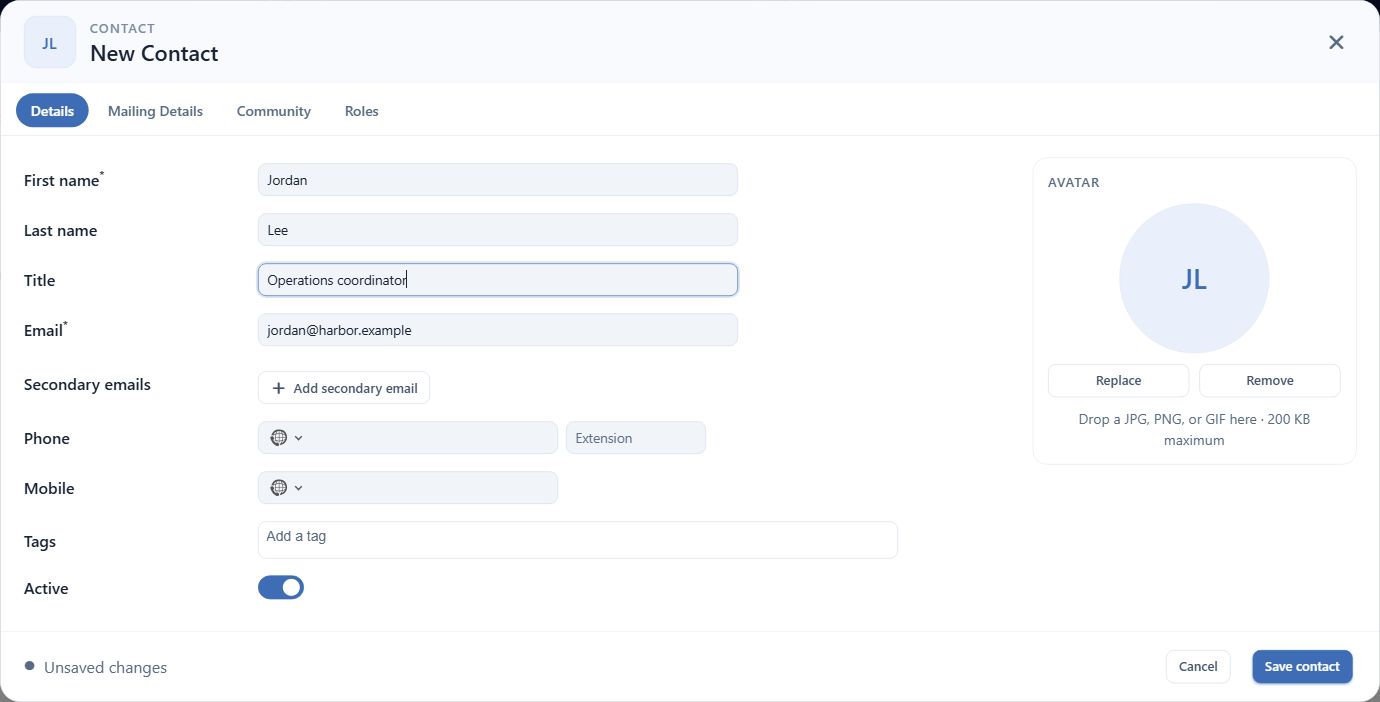
Unsaved fictional Jordan Lee contact, opened from Harbor Manufacturing’s Contacts tab.
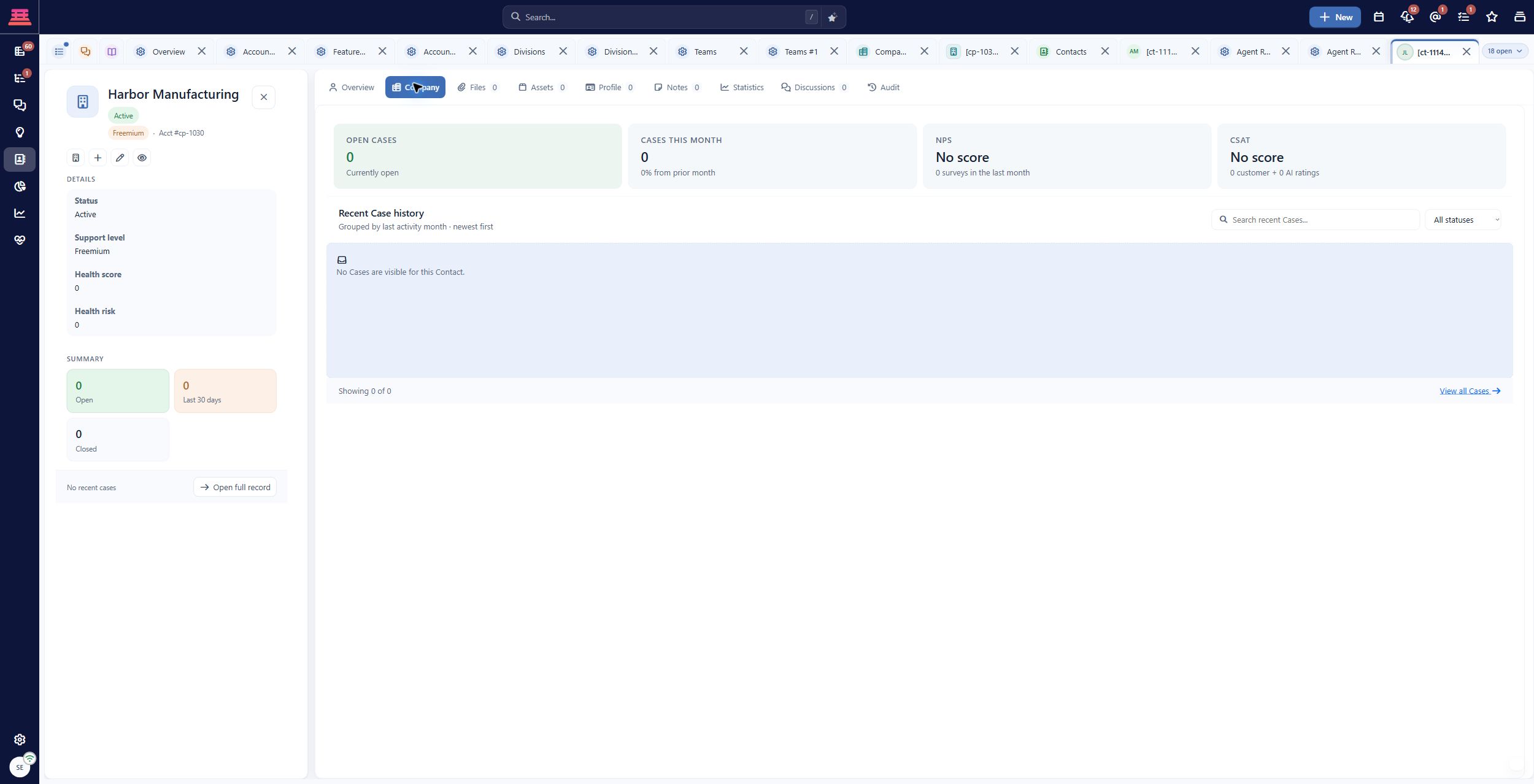
Jordan Lee’s saved Company tab identifies Harbor Manufacturing. Fictional training data.
Contact records and portal access explains additional fields and customer-access choices. Avoid collecting information that has no support purpose.
Use the records on a case
In a new case, use Search by company name, contact, or email to select the saved contact and company. Check that the case displays Harbor and Jordan before entering “Monthly report export fails.”
The case form also supports quick creation. Use Create Company or Create Contact there only when a search confirms the record is absent. If a duplicate is detected, inspect Use existing Contact and reuse the correct person. Do not create another contact merely to bypass a validation message.
A contact’s email can become a message recipient. With the fictional .example address, practice using an internal activity or Save draft. For an actual email test, use a controlled mailbox and confirm every recipient before sending.
If something goes wrong
- Save is unavailable: check create/edit permission for that entity.
- Contact has no company: open the contact’s Company tab. If Associate Company is available, search for the saved company and select Associate Company. If the action is absent, ask an administrator to check contact editing and company-assignment permissions. Do not create a duplicate person to repair a missing relationship.
- Duplicate email warning: search existing contacts and confirm whether it is the same person before using the existing record.
- Case shows the wrong company: correct the selected contact/company relationship before creating or replying to the case.
- Customer cannot sign in to a portal: a saved contact is not sufficient proof of portal identity or access. Follow Community Portal and KB Security, then test as that customer.
Completion check
- Harbor exists once as a company.
- Jordan exists once with the intended email.
- Jordan’s primary company is Harbor.
- The case customer selector finds the correct records.
- No invitation or delivery is assumed from record creation.
Previous: Adding Your Agents · Next: Priorities, Case States and Activity Types
Updated 27 minutes ago