

Azure DevOps
Evaluate Azure DevOps compatibility, configure engineering links and test case/work-item updates.
Optional · Connect existing tools
Connect a support case to engineering work when the investigation needs Azure DevOps. A work item is an engineering record. Its state and audience may differ from the customer case. Keep the support owner and customer-update plan even after linking engineering work.
Before you begin
Use an administrator with integration-configuration permission and an authorized Azure DevOps identity for the intended organization/projects. Case actions and provider subscription permissions are separate.
Confirm connection compatibility with Supportbench before a new connection or reconnection. The current Core editor uses the configured legacy Azure DevOps OAuth integration; it does not offer a personal-access-token replacement or a Microsoft Entra migration procedure. Do not paste credentials into an unrelated field or follow an old application-registration tutorial.
If you do not use Azure DevOps, mark this optional chapter not applicable.
Configure a compatible connection
- Open Settings → Integrations → Azure DevOps and inspect the existing connection.
- After compatibility is confirmed, choose Connect Azure DevOps or Reconnect and authorize the intended provider identity. Resolve provider refusal before continuing.
- Select Verify connection. This checks saved authorization, not every project subscription.
- Open Organizations and projects, select Add organization, choose the Available organization, then Add.
- Within it, use Add project, select the intended project and choose Add.
- Check the project’s active state and its comment/update subscriptions. If Repair required appears, use Repair and inspect the result. Provider permissions must allow viewing and editing subscriptions.
- In General, review Display name, Create Supportbench activities for, Map Azure DevOps state to and Allow agents and workflows to use this connection.
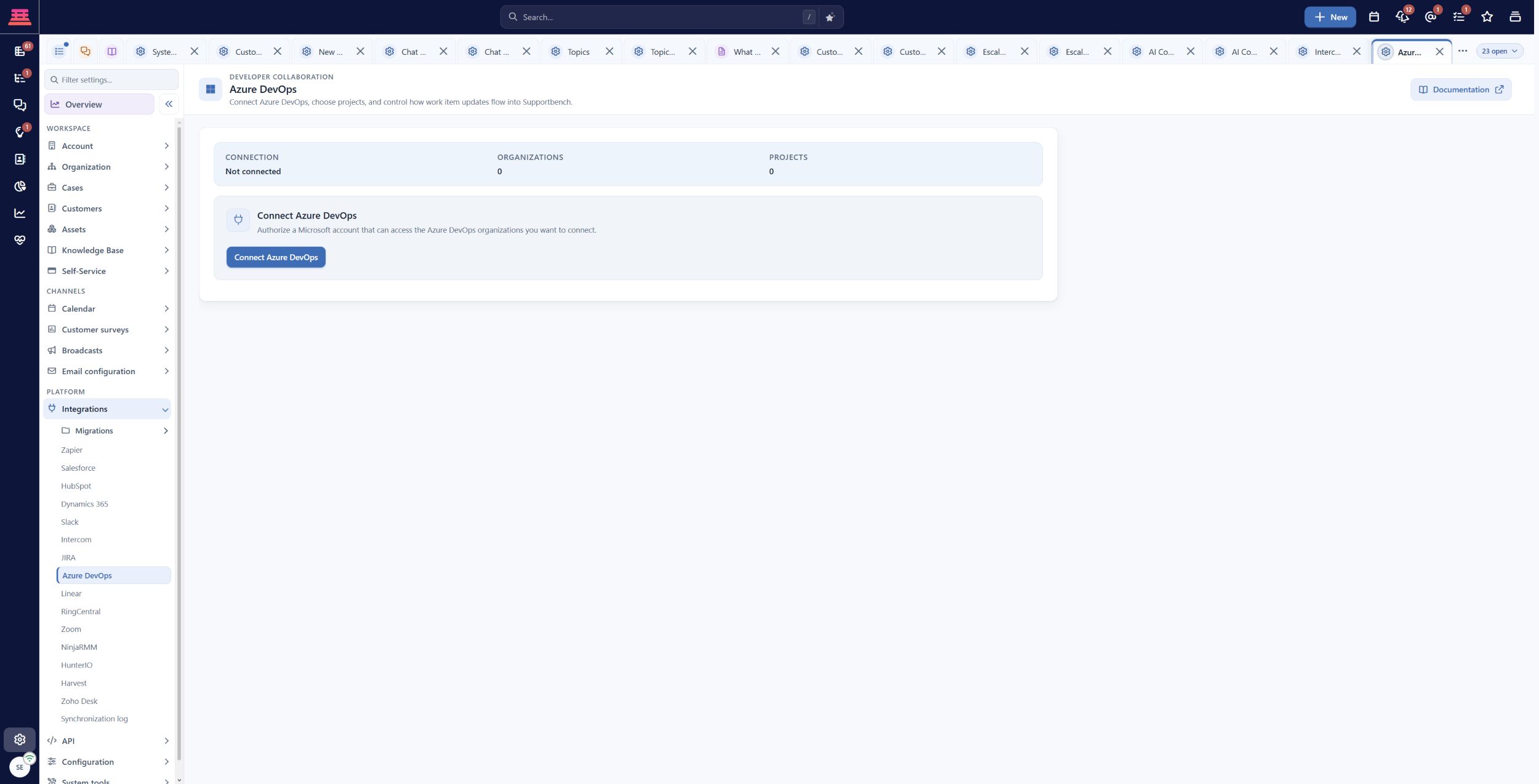
Azure DevOps is not connected in the demo: zero organizations and projects. Confirm connection compatibility before authorization. Connected defaults and provider round trips were not exercised.
Azure DevOps configuration and current compatibility is the detailed reference.
Set useful defaults and mappings
- In Defaults, enter the actual Organization, Project, Work item type and Area path your engineering team uses.
- In Field mappings, add only needed Azure field reference names and compatible Supportbench destinations.
- For state mapping, compare the meanings. Engineering “Done” may mean coding is complete, while the customer still needs deployment or confirmation.
- Use the settings save action, reopen the editor and verify the saved values.
- Remember that organization/project additions, activation, repair and removal have their own immediate actions; they are not all staged for the final Save.
The demo account is disconnected, so connected defaults and saved provider mappings are not pictured. The steps above follow the current Core configuration reference; complete the controlled round-trip test below in your authorized environment before treating the integration as ready.
Verify one case and work item
- Use the controlled Harbor report-export case and an approved engineering project.
- Have an authorized agent create or link the work item from the case. Review the selected activity, description and attachments before transmitting them to engineering.
- Confirm the resulting provider ID, project and Supportbench relationship. Record the existing ID if a later attachment step fails.
- Make a harmless provider comment or state change included by your activity policy.
- Inspect the resulting case activity and mapped fields. Test an excluded event too, to check noise and intended filtering.
- Confirm the support agent still owns the customer update and service deadline.
Creating or commenting requires the relevant DevOps operation permission. Linking through Actions → Case Relations → Link a Case also needs the applicable case-link entry-point permission. The two paths are not interchangeable evidence of access.
Recover common failures
If authorization is refused, resolve compatibility and approved provider policy with the integration owners; the editor does not supply a PAT workaround. If Repair required remains, inspect provider Service hooks and subscription permissions.
If updates are absent immediately after linking, inspect the event policy, subscription delivery and documented echo/timing suppression before retrying. If a work item exists but attachment/linking partially failed, inspect that item before creating another.
If case states change too early, revise the mapping so engineering completion does not silently imply customer acceptance.
Completion check
- Compatibility and authorized provider scope are confirmed.
- Project subscriptions and saved defaults are verified.
- One approved case/work-item round trip passed.
- Partial failures were inspected without duplicating work.
- Support ownership and customer communication remain explicit.
Previous: Intercom · Next: Handle your first case from start to finish
Updated about 10 hours ago