

Set service hours and holiday coverage
Define when support is staffed and which dates interrupt ordinary coverage. Review this even if you provide continuous service. Working availability affects who can receive work; SLA timing determines when a service commitment is due. They can use related calendars but ar
Required · Configure case handling
Define when support is staffed and which dates interrupt ordinary coverage. Review this even if you provide continuous service. Working availability affects who can receive work; SLA timing determines when a service commitment is due. They can use related calendars but are different decisions.
Before you begin
Use an administrator permitted to edit teams, queues and holiday schedules. Agree the service timezone, normal days, hours and holiday coverage. An agent’s temporary Away status is not the same as an organization-wide holiday.
Example only: Northstar provides weekday support, 09:00–17:00 in its chosen office timezone. Its agreement counts response targets during those business hours.
Set the team schedule
- Open Settings → Organization → Teams and the relevant team.
- Open SLA Availability.
- Choose Timezone for the schedule, then select the actual Working days and start/end Working hours.
- Leave Enable off-day hours off unless there is staffed coverage on the other days. If enabled, enter the intended Off-day hours.
- Review Holiday schedule and the displayed effective schedule. If none is selected for the team, check the account fallback rather than assuming there are no holidays.
- Select Save Changes, reopen the team and confirm the schedule.
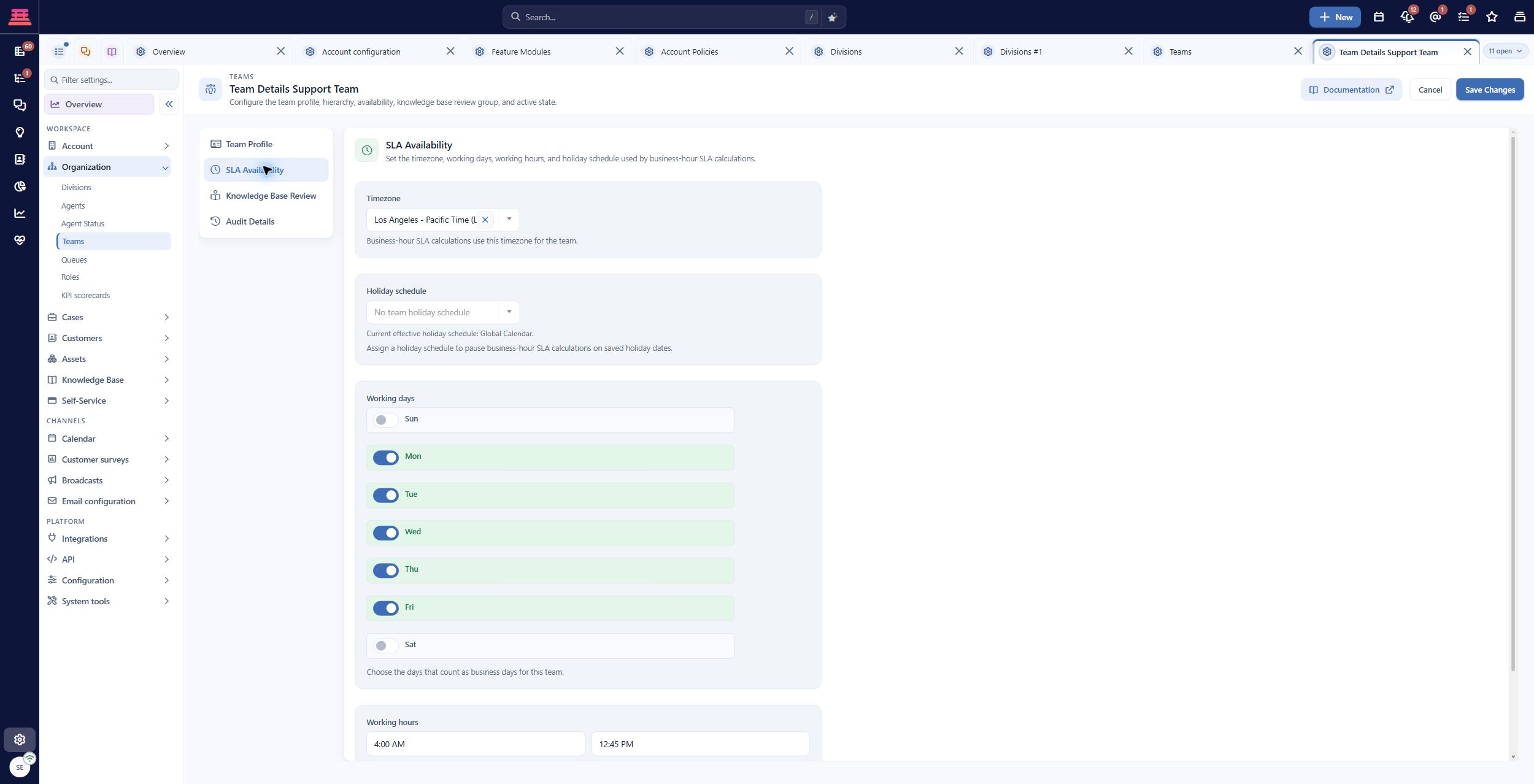
Saved team SLA Availability. Demo hours differ from the suggested training schedule; the effective holiday calendar is shown.
The screenshot shows the demo’s saved hours, which are different from the illustrative 09:00–17:00 schedule above.
Create and assign holidays
- Open Settings → Calendar → Holiday schedules.
- Open the appropriate existing schedule, or select New Holiday Schedule.
- Name it for the coverage it represents, such as Northstar office holidays, and save it.
- Open Holiday dates. Select the start date in the calendar, then the end date for a multi-day closure. Enter a name such as Northstar winter closure, review the selected range and select Add Date. Select Save Changes to retain the schedule.
- Reopen the schedule and confirm the entry.
- Return to the team’s SLA Availability, choose this Holiday schedule, save and verify the effective schedule.
- Check any global fallback used by teams without an explicit schedule. A saved calendar that is never selected does not establish the intended coverage.
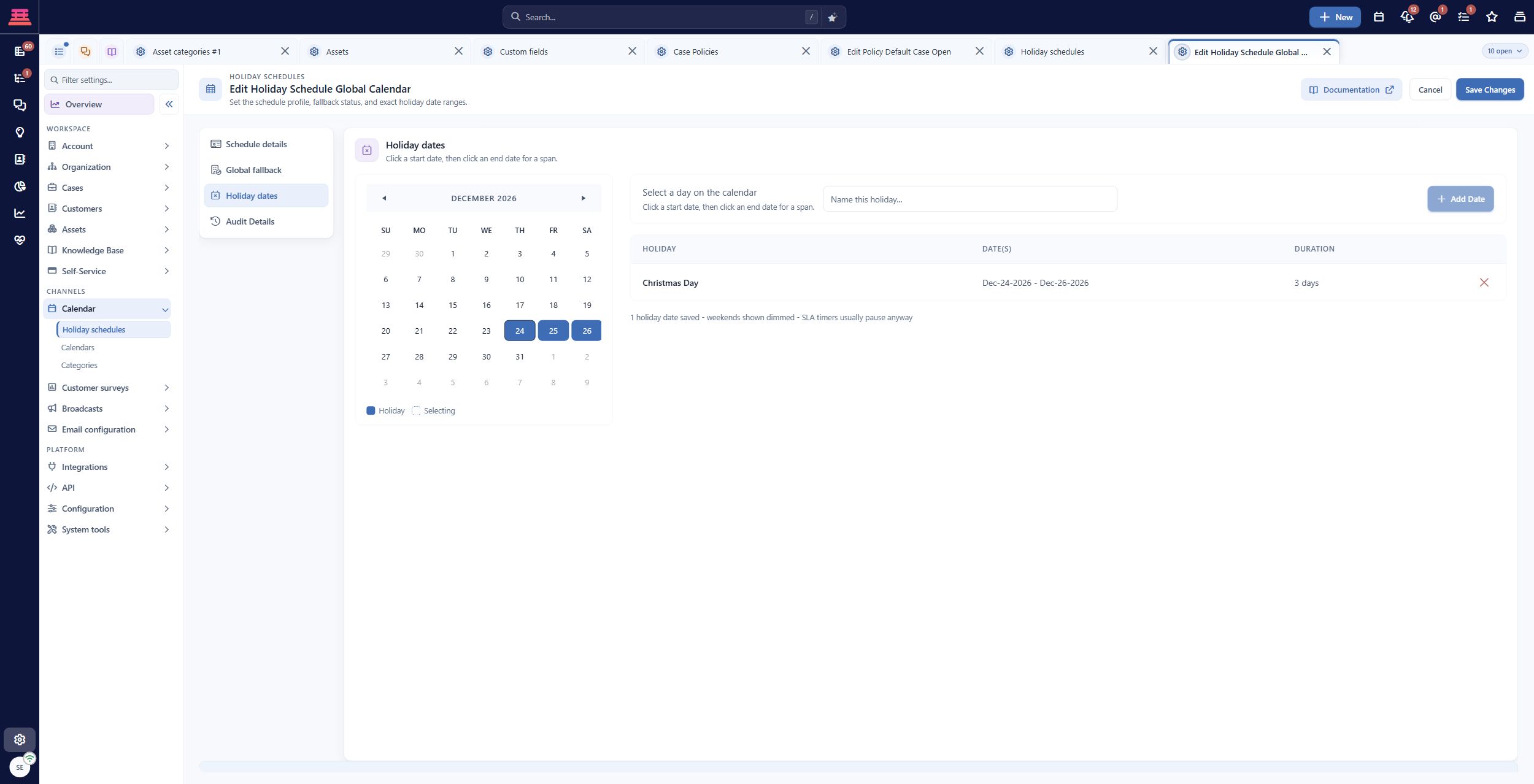
Saved holiday date range in the demo Global Calendar. Choose dates for your own service coverage.
Holiday schedule configuration explains the date controls and assignment.
Check queues and individual coverage
Open Settings → Organization → Queues and review the receiving queue’s timezone and hours. A queued case’s SLA calendar follows the queue and parent-queue path; do not assume the owner’s team supplies missing queue hours.
For a case without a queue, the owner’s primary team and its parent path may provide the schedule; the owner profile can apply when there is no team. An empty effective business-hour schedule can result in continuous counting. Working hours, availability and SLA timing explains these distinctions.
Agent calendars, out-of-office settings, presence and queue assignment rules must also match the staffing plan. Decide who monitors the queue during an absence; an unavailable agent should not leave customers without an accountable next step.
Verify a boundary, not just an ordinary day
After configuring an SLA rule in the next chapter, test a case during coverage, near closing time, on an off-day and across a configured holiday. Record the actual due time and effective queue/owner context.
For a two-hour Business Hours target beginning Friday at 16:00 under the example schedule, the illustrative due time is Monday at 10:00, assuming no holiday or off-day coverage. A 24/7 target would be Friday at 18:00. Confirm your actual case result; these are not universal defaults.
If weekends count unexpectedly, inspect the selected clock, queue hours and off-day coverage. If a holiday is ignored, confirm its saved dates and effective assignment. If only one agent’s availability is wrong, review that profile rather than changing the entire team schedule.
Completion check
- Service timezone and hours match the agreed coverage.
- Queue and team calendars are reviewed separately.
- Holidays are saved and actually assigned.
- Absence coverage has an owner.
- SLA boundary tests are recorded or explicitly pending until the next chapter.
Previous: Case Policies · Next: SLA Management
Updated 27 minutes ago