

Knowledge Base Breakdown
Organize a starter topic, write a complete answer, save and review it, then verify publication and discovery.
Required review; publishing customer knowledge is optional · Prepare your knowledge base
A knowledge base stores reusable answers and procedures. An article is one piece of guidance; a topic organizes related articles. Older Supportbench material calls topics “containers.” A tag is a classification that can help group articles; it is not an access grant.
Start with a few complete answers to real customer questions. For Northstar, a useful starter could explain what information to provide when a report export fails.
Before you begin
An administrator needs Administer article topics and the appropriate division access. An author needs article creation/editing permission, and publication may require an authorized reviewer. Decide whether the starter is public, customer-restricted or internal before writing it.
Organize one topic
- Open Settings → Knowledge Base → Topics.
- Search for a suitable existing topic, or select Create topic.
- Under Content, enter a clear English name, such as Reporting help, and a description of its scope.
- Review Article Tags. Any one matching article tag can include an article automatically; several topic tags do not mean every tag must match. Use focused tags, or direct placement where enabled.
- Under Organization, choose the intended Parent topic, Division and Display order. A child inherits its parent’s division.
- Review Active topic on Content. Under Access & Visibility, review Public portal topic and Agent Roles. The role selector’s exact label is Agent Roles, but its restrictions also participate in portal audience checks. Do not assume it affects staff only.
- Select Save Changes, look for the saved result and reopen the topic.
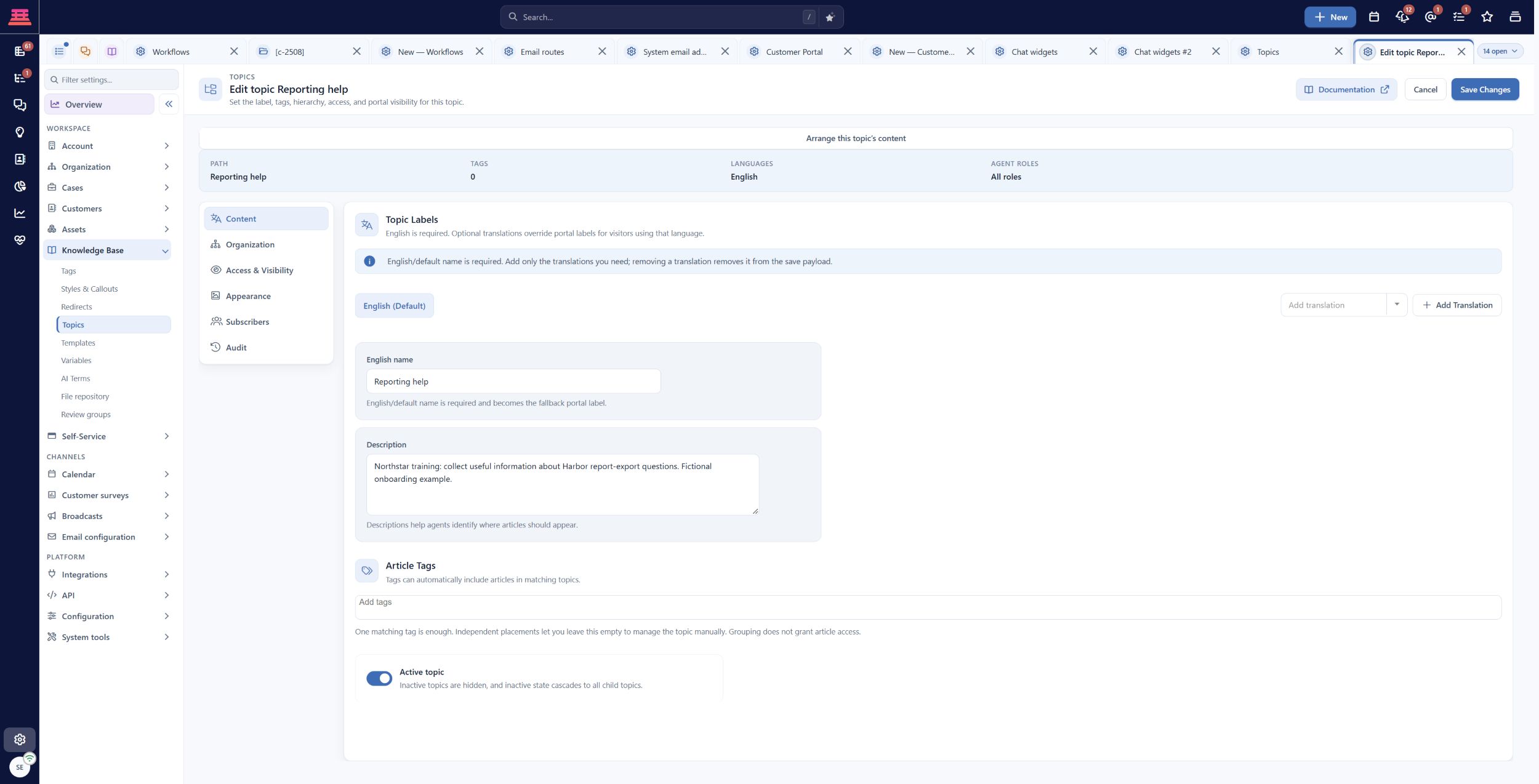
Saved Reporting help topic with a focused Northstar training description. Public portal visibility remains off while content is prepared.
Topics, membership and access explains inheritance and portal eligibility. A public topic does not automatically turn an internal article into an external one.
Write a useful starter article
- Open Knowledge base in the main navigation and select Create Article.
- On Article, enter a task-oriented Title, such as What to include when a report export fails.
- Choose the intended Division and Visibility. Internal is for staff guidance; External makes the article eligible for customer use subject to the remaining audience rules.
- Write a short Summary explaining the result. Under Topics, select Choose, select Reporting help in Select Topics, then Done. The direct placement is applied when the article saves; review any automatic tag-based placements separately. Add natural phrases under Search keywords, pressing Enter after each, such as “monthly report will not export.”
- Write the complete procedure: identify the report and export format, record the error text and time, explain how to contact support and what happens next. Use sanitized examples. Do not publish an invented fix.
- Select Save as a Draft for the first save. Open the saved article and choose Update Article to continue editing.
- For External content, an authorized editor can now open Security. Review Restricted tags and Restricted roles → Customer Roles, including inherited topic roles. Security is absent for Internal articles, unsaved new articles or an editor without the required capability. Save the reviewed draft and verify the audience before publication.
- When ready and authorized, use Finalize & Publish. Keep Notify subscribers off for quiet initial setup unless a deliberate announcement is intended.
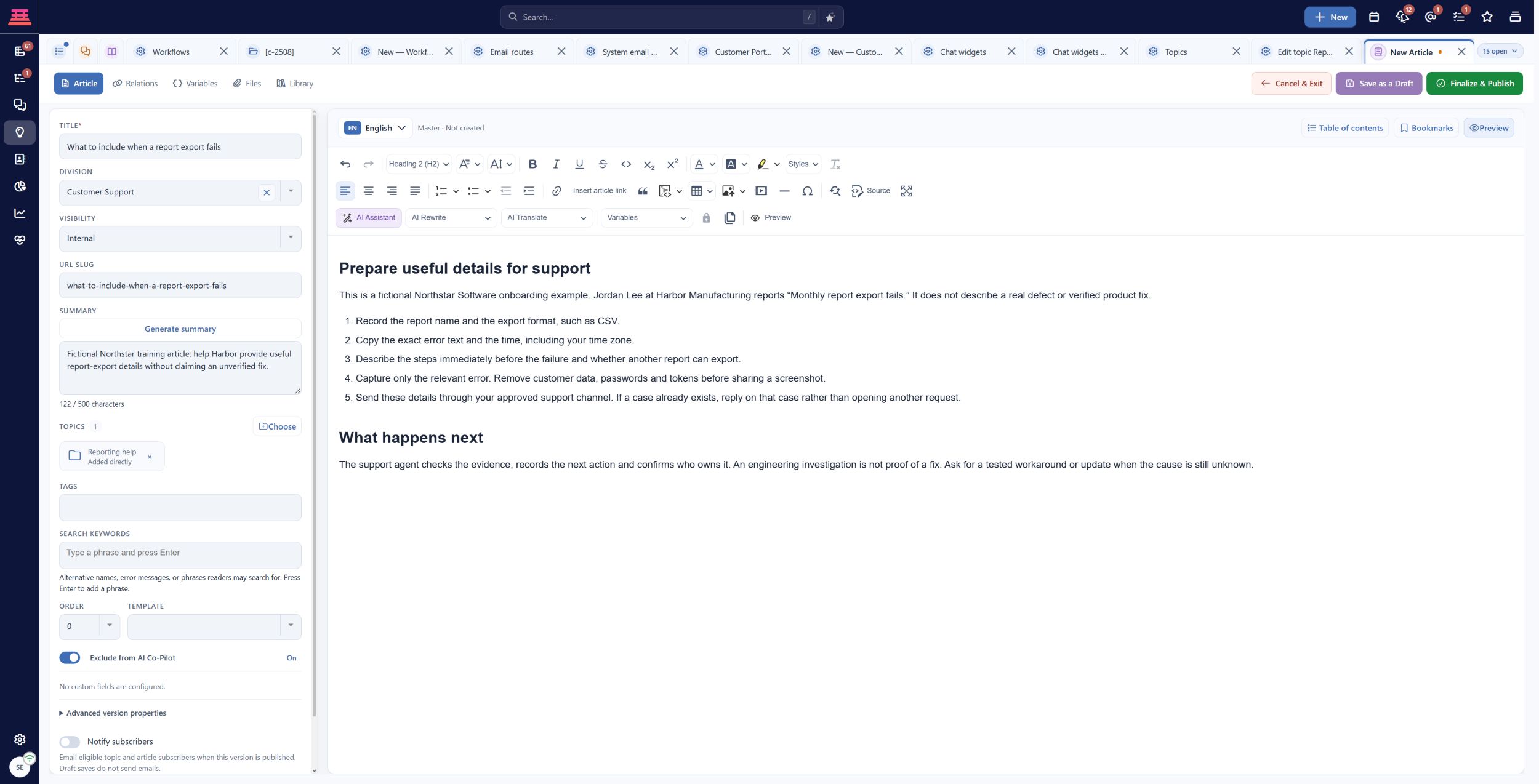
Filled internal starter article for Northstar and Harbor, before its first draft save. Notify subscribers is off and the fictional exercise is excluded from AI Copilot.
Verify reuse and discovery
Open the saved article in the agent reader and the intended portal. Check its body, images, summary, links and audience. Search using the customer’s wording, for example “monthly report will not export,” as well as the exact title. A publication success does not prove search indexing or every AI answer.
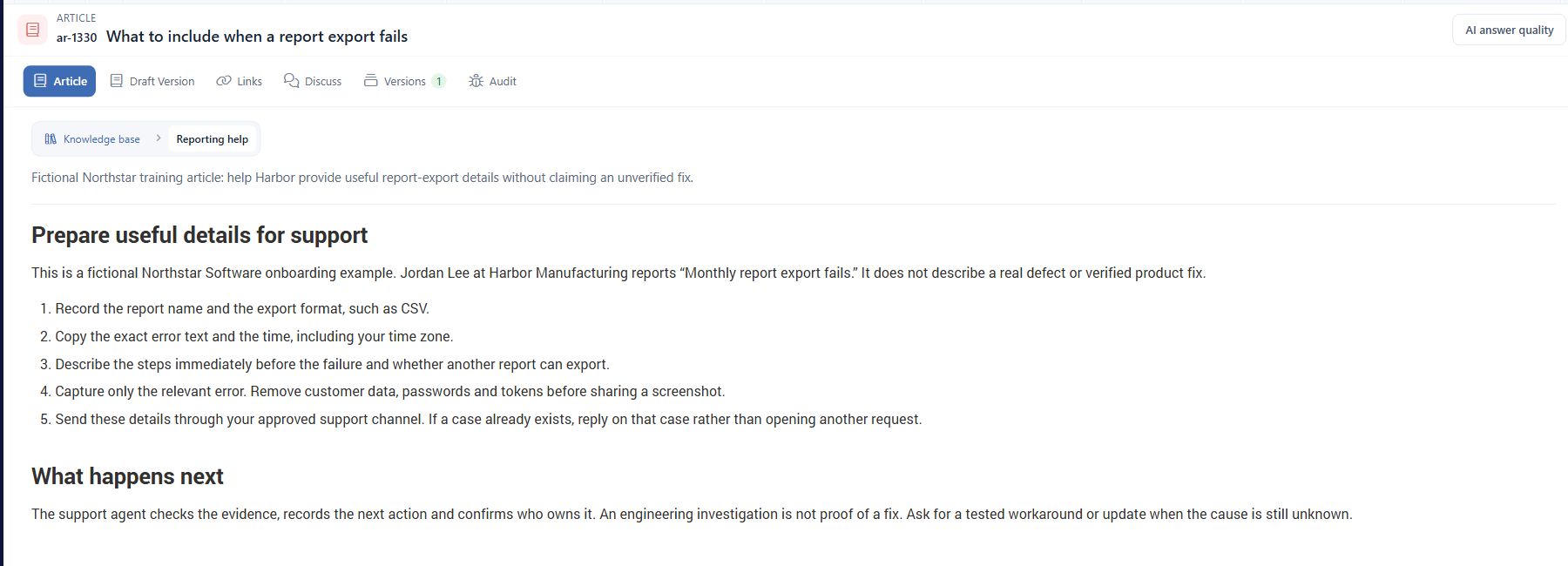
Saved internal draft ar-1330 in the agent reader. The article is In Draft and is not publicly published.
On the training case, use the verified guidance to help the customer supply missing information. Review the article before sharing its URL; a customer cannot use an internal-only link. Keep private investigation detail out of reusable public guidance.
If content is missing
Check article publication status and External visibility, topic membership, active/public topic settings, portal topic selection, division and customer restrictions. If an article remains in a topic after removing a placement, inspect matching tags or other placements. If the displayed summary is stale, verify the actual reader result after the normal publication process rather than assuming the saved description refreshed generated metadata.
Completion check
- A small, understandable topic structure exists.
- One complete starter article is reviewed and saved.
- Intended readers can open it; excluded readers cannot.
- Natural-language searches and links were checked.
- A named owner will maintain the content.
Previous: Set up chat and test the customer handoff · Next: Customer Roles and Knowledge Access
Updated about 2 hours ago