

Set up chat and test the customer handoff
Configure chat mode, routing, coverage and case fallback, then test a visitor conversation and human handoff.
Required for your chosen channel: chat · Connect support channels
A chat widget is the customer-facing panel installed on a website. Choose whether it offers an AI assistant, live agents, knowledge or case submission, then test what happens when a person needs help. A good-looking preview does not prove a successful handoff.
Before you begin
Use an administrator with chat-widget editing permission and the Chat module available. Have an approved staging page, its hostname, a monitored chat queue and an available test agent. Knowledge/AI modes also need approved customer-readable content and the applicable AI capability.
Configure the widget
- Open Settings → Self-Service → Chat widgets and open the intended widget or use the New Chat Widget action.
- In Overview, enter a recognizable Name and review Active.
- Choose Widget mode deliberately. Live chat only suits a staffed human channel. AI bot + live chat adds an assistant before handoff. AI bot only and Knowledge base only serve different self-service needs. Some accounts also offer Case form only (if offered).
- Add the exact Allowed domains for staging and the intended site. Commit each entry with Enter or Tab and resolve invalid entries.
- Open Routing & availability. Choose the live Queue, Working hours and timezone. Match actual staffing; choosing a queue does not guarantee an eligible agent.
- Review Auto-create case, Division, Priority, Create a follow-up ticket after waiting (minutes) and Follow-up ticket queue (optional) where available. Decide where an unanswered conversation goes.
- On Routing & availability, review Out-of-hours message, Waiting message and Timeout message. Review the remaining copy in Messages & follow-up. Do not promise an instant response when no agent is available.
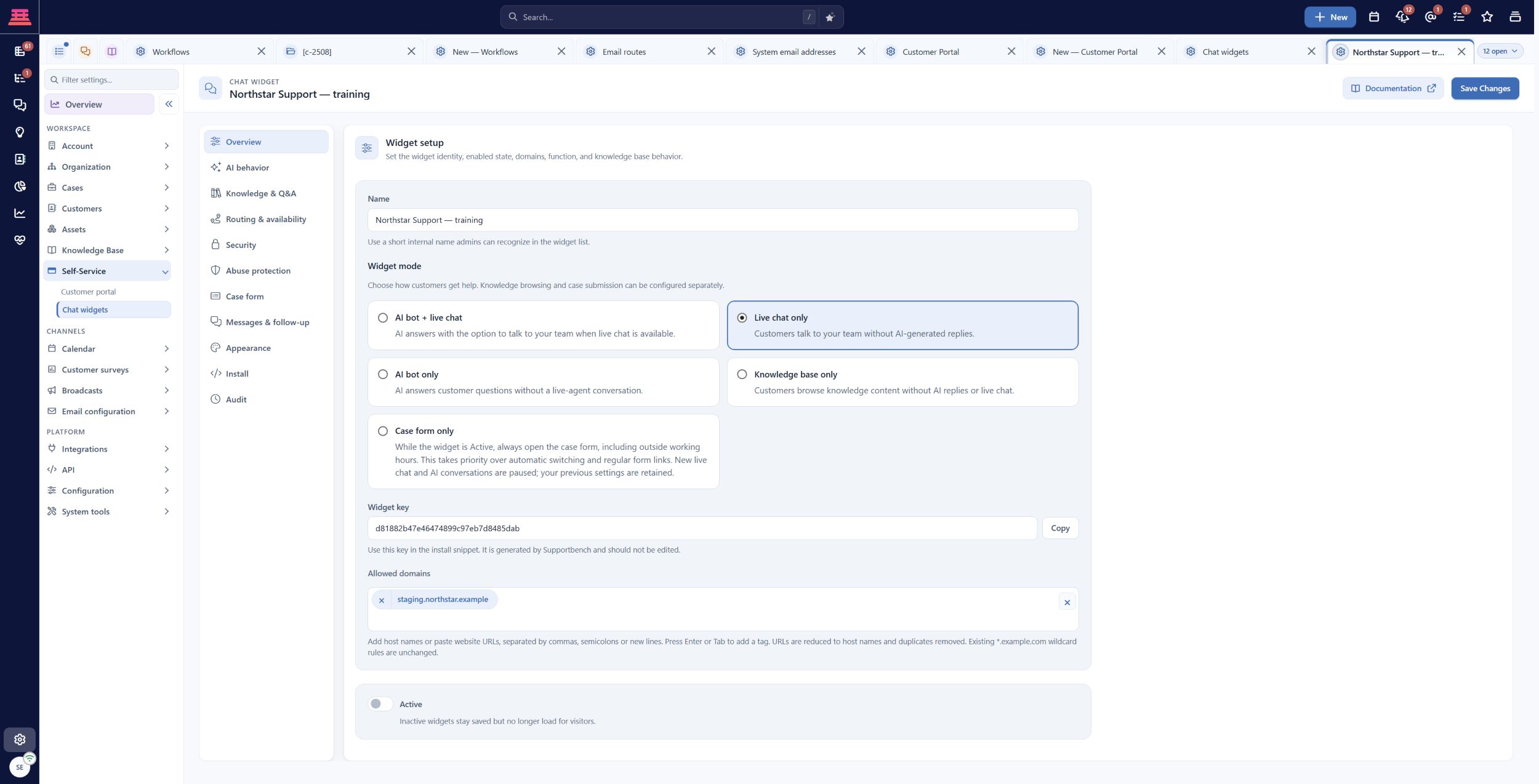
Saved Northstar training widget with Live chat only, a fictional staging domain and Active off. These are example choices, not product defaults.
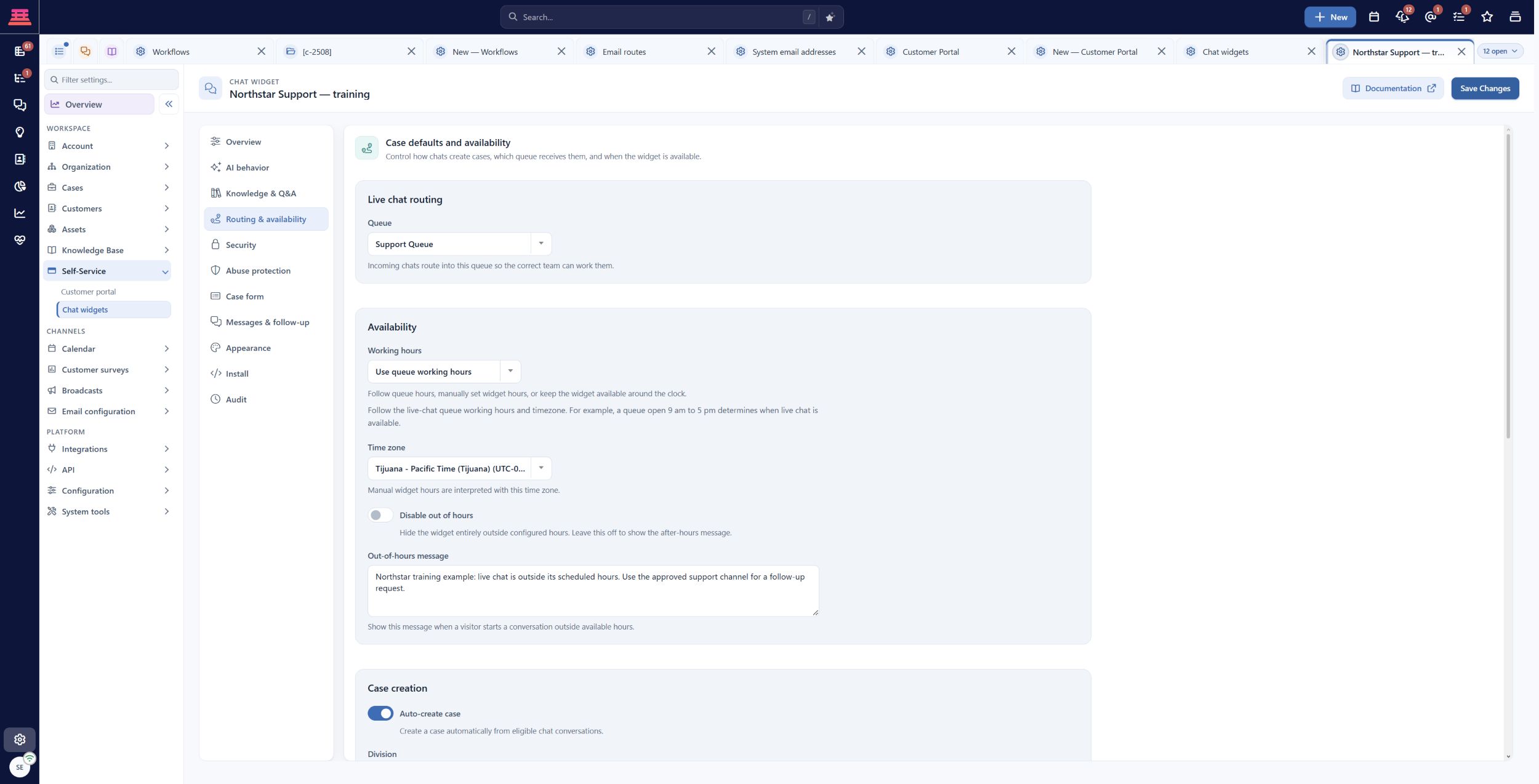
Saved training widget routing: Support Queue, queue working hours and a clear outside-hours message. The widget remains inactive and is not installed.
Prepare answers and fallback
For AI or knowledge modes, use Knowledge & Q&A to choose Q&A, Knowledge base or Both and the intended Community. Widget Q&A entries and knowledge articles are separate content stores. FAQ dialogs save immediately; main widget changes use Save Changes.
Open Case form → Switch automatically to case submission. Choose Outside working hours or no available agents for the Northstar training example, or another offered mode that fits your coverage. Review When to show regular form links, form title, intro and success message. When fallback is enabled, review What customers see during fallback. Keep AI and offer Submit a case opens the form directly when AI is disabled. Automatic fallback and regular links are separate choices. Save and test the actual visitor result.
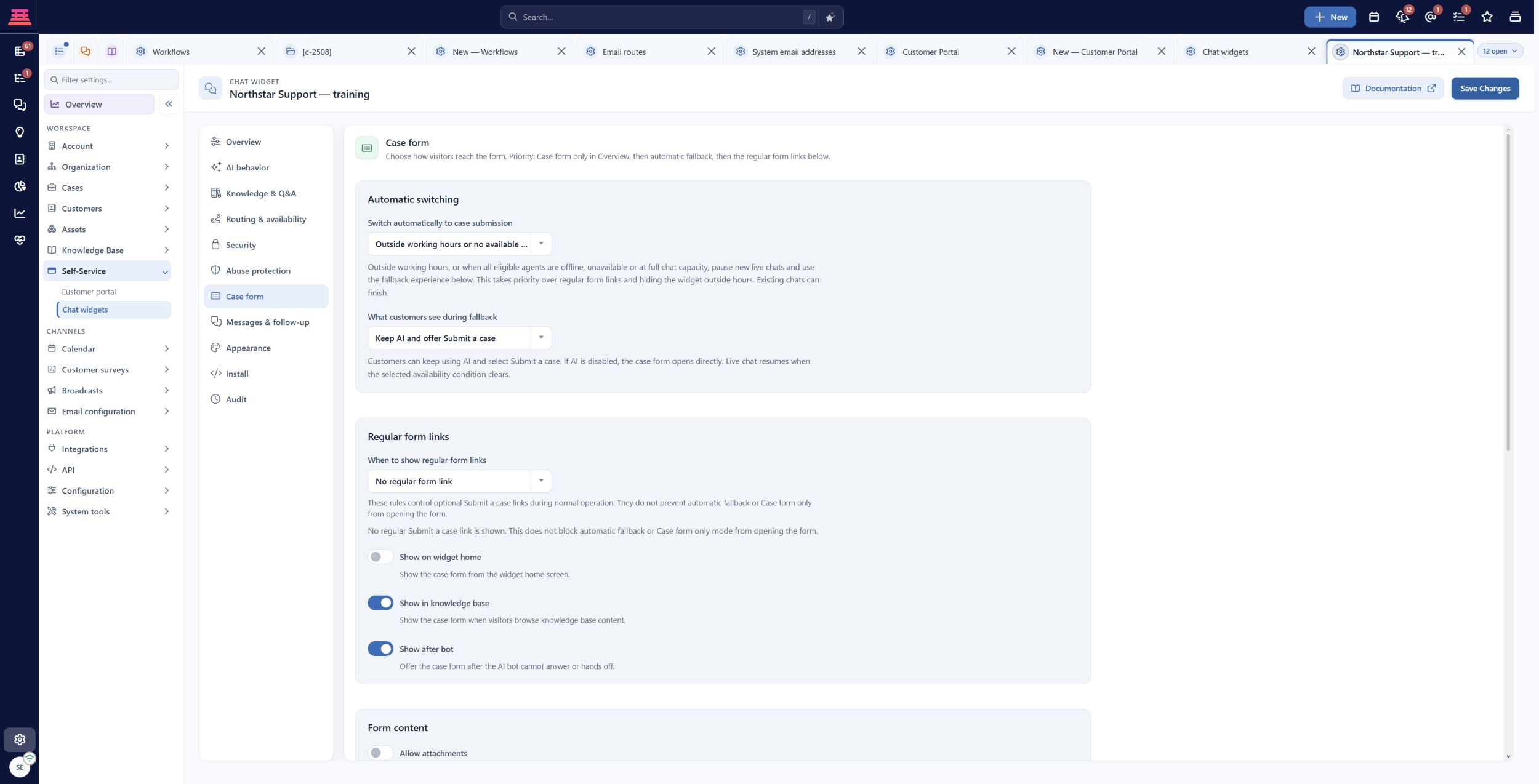
Saved case-form fallback for outside working hours or no available agents. This configuration screenshot does not demonstrate a live visitor-to-agent handoff.
Review Security and Abuse protection with the website owner. An allowed domain limits embedding; it does not authenticate the visitor. Never put a fixed real customer identity into publicly served code. Widget configuration and identity explains the controls.
Save and install
- Select Save Changes, reopen the widget and verify its configuration.
- Open Install and copy the generated snippet for that saved widget.
- Have the website owner install one appropriate snippet on the allowed staging page, normally before the closing body tag. Do not install both basic and recognized-user variants.
- Use the recognized-user variant only after the website authenticates the customer and supplies trusted identity context. Clear identity on logout through the supported integration.
- Load the staging page and confirm the widget appears.
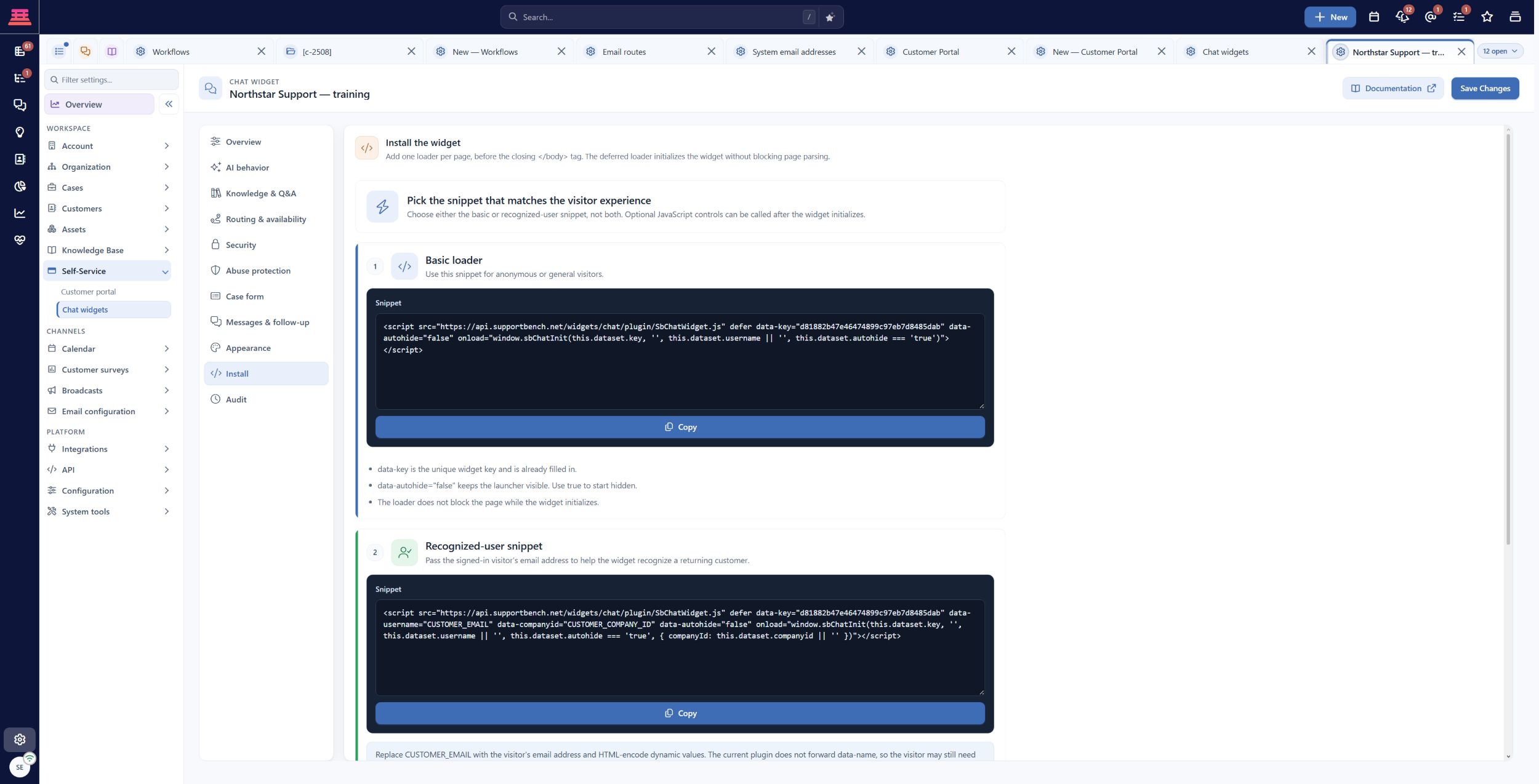
Install tab for saved training widget 2. Copy the snippet generated for your own saved widget; this fictional widget has not been installed.
Test the full handoff
- Make the test agent available and confirm queue membership and capacity.
- As the visitor, report “Monthly report export fails.” If AI is enabled, ask for a human.
- In the agent Chat workspace, accept the conversation. Confirm customer context and exchange harmless messages.
- Inspect any created case and its owner/queue. Verify the transcript and next action.
- Repeat with no eligible agent and outside working hours. Confirm the actual fallback and follow-up queue.
- If you want a timeout confirmation email, configure and test a Case → Chat timed out workflow. Timeout conversion alone does not send that email. Unanswered-chat follow-up explains the sequence.
If the widget is missing, check Active, allowed host and snippet. If no agent receives work, inspect queue membership, eligibility, capacity and hours. If no follow-up email arrives, inspect the workflow and actual recipient/delivery result. Keep installation or delivery pending if you cannot run the controlled test.
Completion check
- The selected mode and allowed site are correct.
- A visitor can reach an agent during coverage.
- Unavailable and after-hours outcomes are clear.
- Created cases, transcripts and ownership are verified.
- Customer email claims are supported by a delivery test.
Previous: Community Portal · Next: Knowledge Base Breakdown
Updated about 10 hours ago