

Customer Roles and Knowledge Access
Distinguish public, customer-restricted and internal knowledge, then test article, topic and portal access together.
Required when using a knowledge base or portal · Prepare your knowledge base
Decide who may read each article before publishing it. Public guidance is suitable for anonymous readers. Customer-restricted guidance is available only to the intended signed-in customer audience. Internal guidance is for staff. These outcomes depend on article, topic and portal settings together.
Before you begin
Use an administrator authorized to manage customer roles and knowledge access, with an author permitted to edit the article. Prepare an intended test customer, an unrelated customer and a signed-out reader. A staff administrator’s view cannot prove what those readers can access.
A customer role classifies companies or contacts for customer-facing access. It is separate from an agent role, which grants staff permissions.
Establish the audience
- Identify what the article contains. Northstar’s generic report-export troubleshooting can be public if reviewed; Harbor-specific contract or installation details should not be public.
- Keep private support-investigation instructions internal.
- If a distinct customer audience is necessary, open Settings → Customers → Customer roles.
- Review an existing suitable role or select New Role. In Role Profile, enter a clear Name and Description, such as Harbor training readers and its intended audience. Keep it active when intended for use, save and reopen it.
- Assign the intended role through the relevant company/contact record’s Roles controls. Verify the saved assignment. Creating the role and assigning it are separate operations.
- Leave Case ID mapping unused unless a specific case-numbering requirement exists; it is not needed to protect an article.
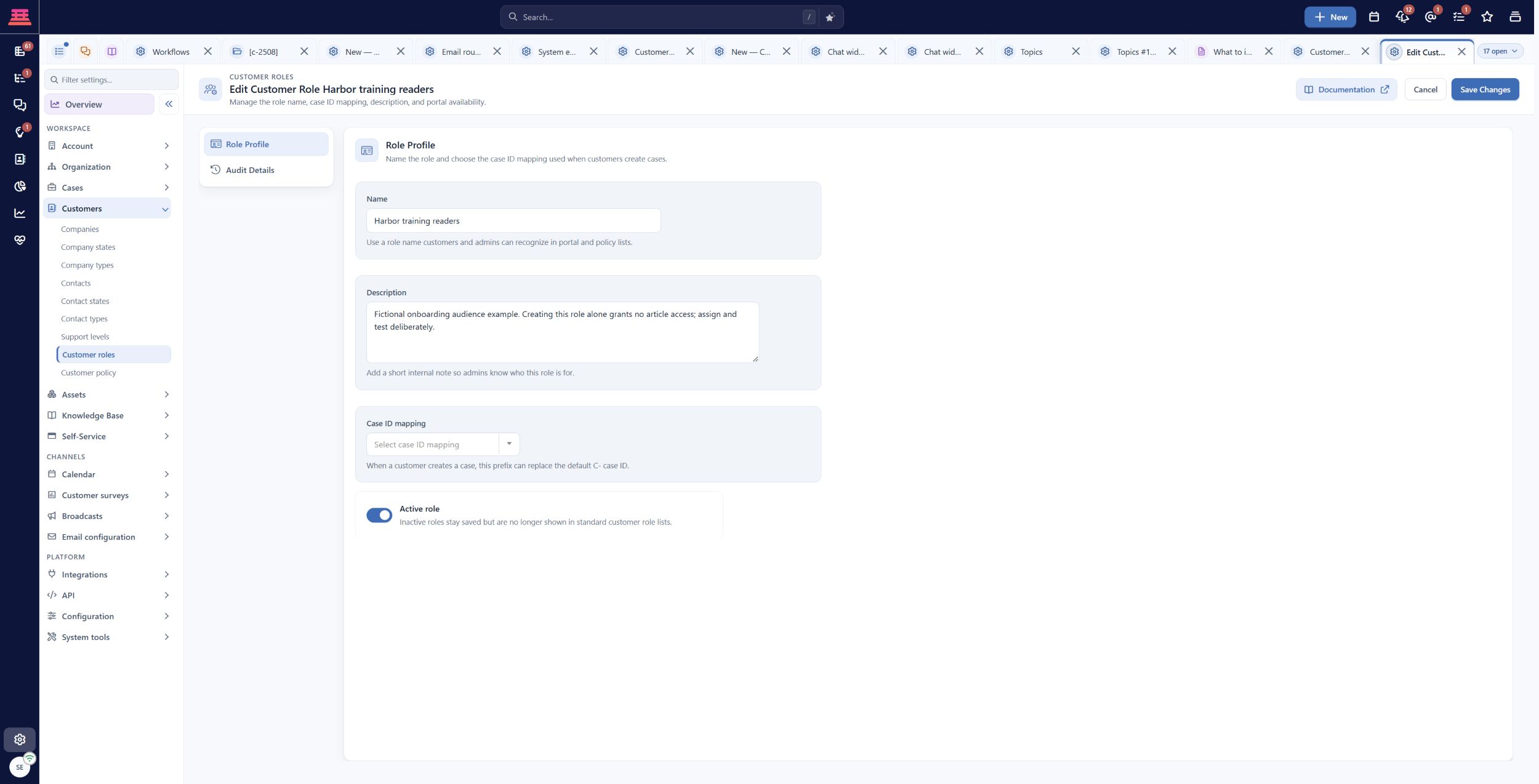
Saved Harbor training readers customer role. It is active but unassigned; creating a role does not grant article access.
Customer roles explains the options.
Review all access layers
- Open the saved article and select Update Article. Check Visibility. For External articles, an authorized editor can open Security, then review comma-separated Restricted tags and Restricted roles → Customer Roles. Read any inherited-topic role note. A new article must first be saved; Security is hidden for Internal articles and unavailable without the security capability.
- Confirm the article’s publication state. A draft is not the reviewed public version.
- Open its topic in Settings → Knowledge Base → Topics. Review Active topic on Content, division on Organization, and Public portal topic and role selections on Access & Visibility.
- Remember that the topic control is labeled Agent Roles, but its selected role restrictions also participate in portal checks. Empty means no stored topic role restriction, not a bypass of other restrictions.
- Open Settings → Self-Service → Customer portal and verify the portal includes the topic and has the intended sign-in, division and customer-role rules.
- Save intentional changes through each surface’s own controls, then reopen the saved records.
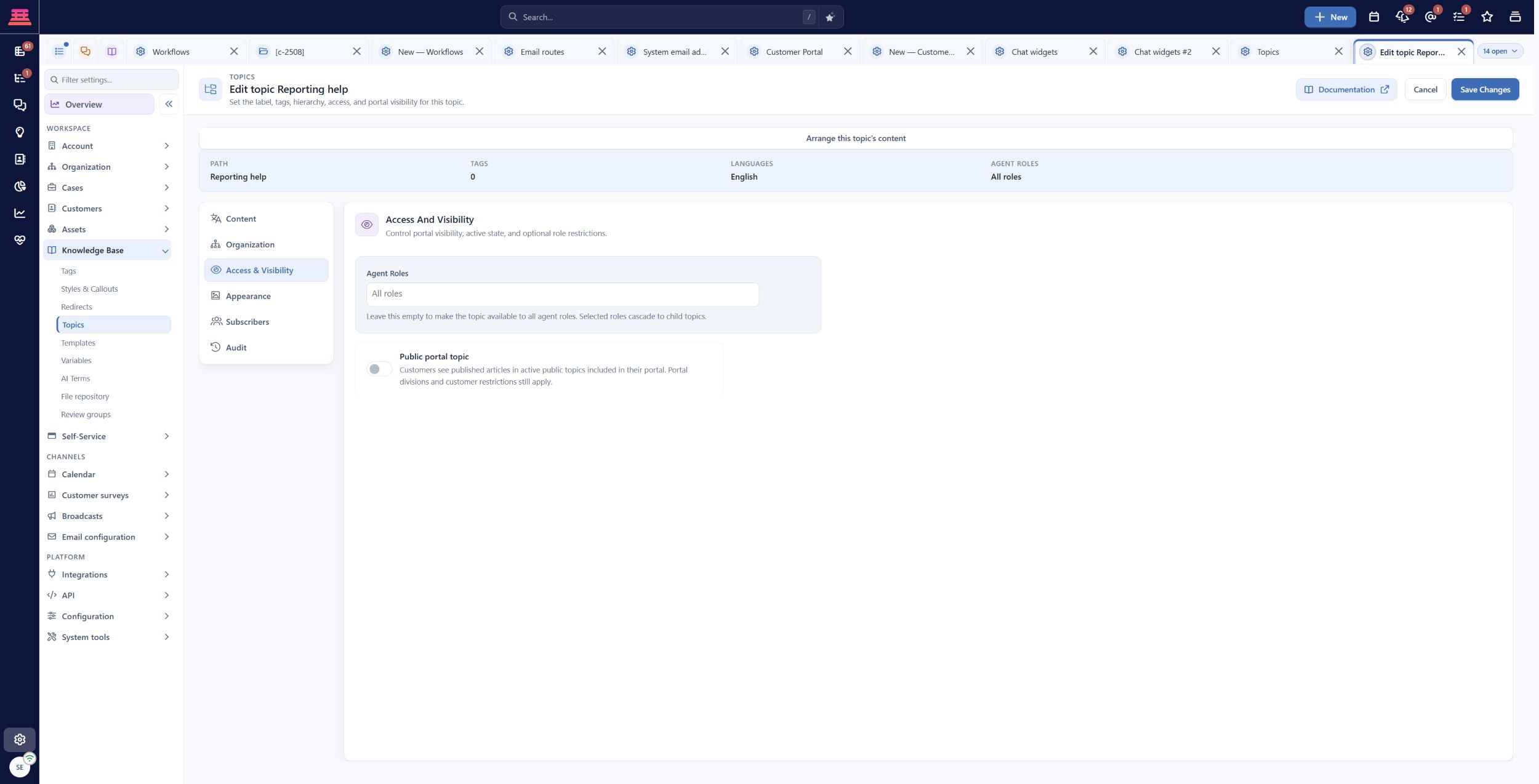
Saved training topic access: Public portal topic is off and no topic role restriction is selected. Article visibility and portal rules still apply.
Topic access and inheritance and portal access explain the detailed interactions. A tag used for organization does not independently authorize a reader.
Test the result
Use the actual article URL and search/browse path in each audience:
| Reader | Public article | Harbor-restricted article | Internal article |
|---|---|---|---|
| Signed-out visitor | Readable if the portal permits public access | Excluded | Excluded |
| Intended Harbor customer | Readable | Readable when the configured role/rules allow it | Excluded |
| Unrelated customer | Readable | Excluded | Excluded |
| Authorized agent | Subject to staff access | Subject to staff access | Readable when authorized |
Treat this table as the intended example outcome, not a claim that merely naming a role creates it. Test both direct URLs and search results. Also inspect attachments and linked articles; the main article’s wording cannot make a restricted dependency usable.
Recover access problems
If an intended customer is excluded, check their actual sign-in identity, company/contact role assignment, portal scope, topic inclusion and article restrictions in that order. If an unrelated reader gains access, remove the unintended exposure through the relevant settings and retest before rollout.
Do not make restricted staff articles public to repair an onboarding link. Link a suitable public procedure or provide the basic instructions within the guide.
Completion check
- Every starter article has an explicit audience.
- Customer roles and staff roles are understood separately.
- Topic and portal rules agree with article restrictions.
- Intended, unrelated and signed-out readers were tested.
- No restricted article is a required public dependency.
Previous: Knowledge Base Breakdown · Next: Workflows
Updated about 10 hours ago