

Choose and verify AI assistance
Choose a focused AI capability, check its policy and verify the result against actual case evidence.
Optional · Automate useful work
Choose an AI capability that helps a specific support task, then compare its result with the source case or article. AI assistance can summarize or classify information; it does not remove the agent’s responsibility to verify facts, access and customer communication.
Before you begin
Use an administrator with AI-configuration permission and the applicable account capability. Have a representative harmless case, clear priorities/issues and reviewed knowledge. Begin with a narrow use, such as case summaries, rather than enabling every option.
Northstar wants an agent taking over Harbor’s case to understand the reported failure, attempted work and next action.
Review an AI policy
- Open Settings → Account → AI Configuration.
- Inspect the existing policy before creating another. A policy groups the AI behavior applied to its scope.
- Review Name, Description and Divisions. An empty division selection is global; use a scoped policy only when that behavior should differ.
- The default global policy does not allow division edits. The demo calls it Global AI Policy; names in your account may differ.
- Enter a clear Case summary prompt if your policy permits it. For example: “Summarize the reported problem, verified facts, work attempted, current owner and next action. State when information is missing.”
- Choose Default AI output language for the team’s supported internal output. This is separate from the interface language and every customer-reply language choice.
- Open the AI Configuration tab. Review Case summarization, Activity summarization, Case priority assignment, Case issue assignment and Case auto-tagging. Enable only the intended supported features.
- Review Co-pilot external data according to your approved information sources.
- Select Save Changes, reopen the policy and verify its scope, prompt and switches.
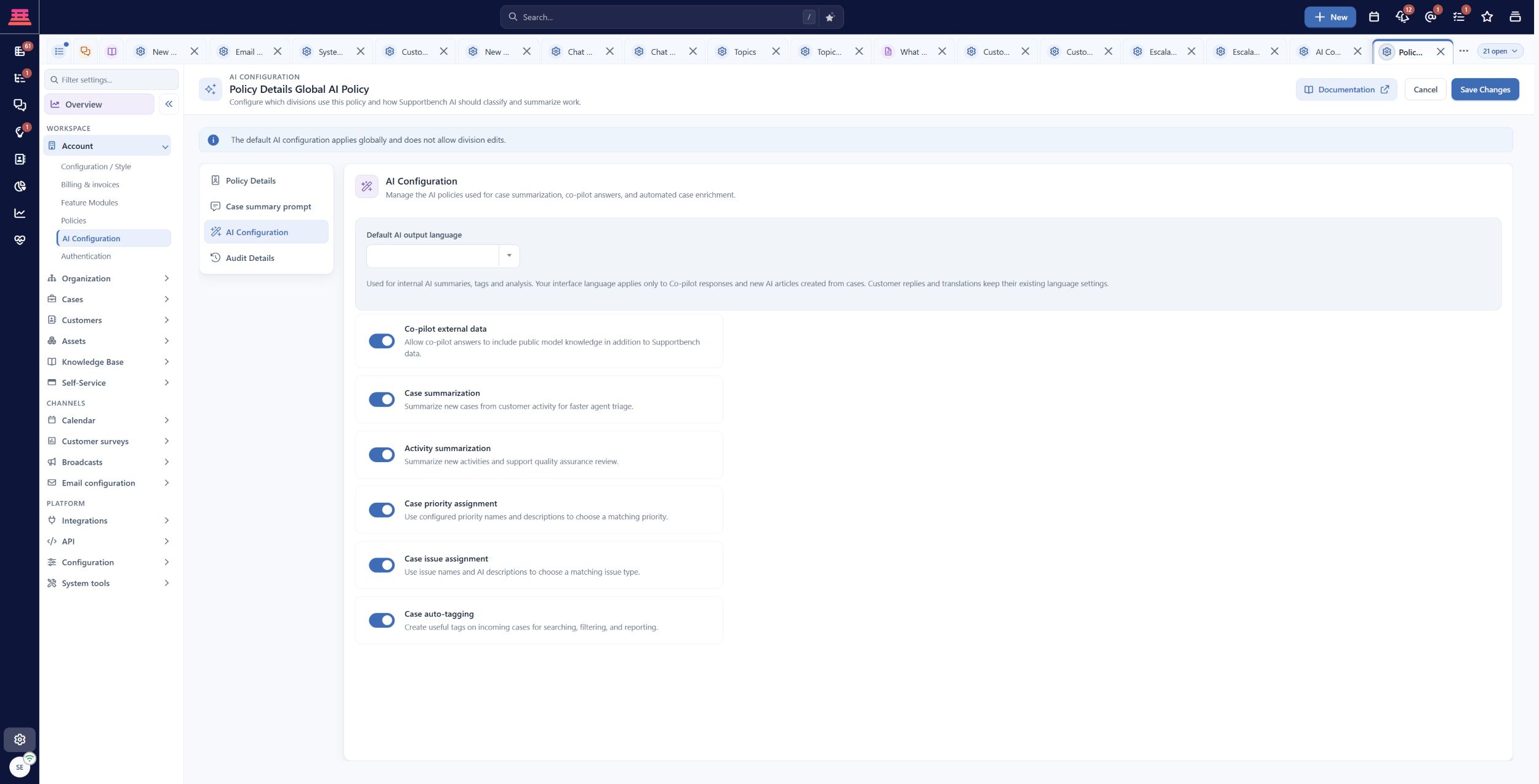
Existing saved global AI policy and its AI Configuration tab. These are demo account choices, not recommended defaults; no switches were changed.
AI policies and configuration explains the detailed settings. A classification feature depends on meaningful configured choices; it cannot repair unclear priority or issue definitions.
Test the actual result
- Open the Harbor training case after it contains a factual customer problem and an internal investigation note.
- Open Activities, select an activity, then choose Summarize (sparkles) in that activity’s command bar. It opens Copilot for the case and requests a fresh summary. The command requires the AI capability and Copilot Core to be enabled; it appears after you select an activity.
- Compare every significant statement with the original activities. Check the affected company/contact, export format, error, actions already tried and next owner.
- Test an ambiguous case and a case with missing information. The output should not invent a cause, a successful fix or a customer promise.
- If classification is enabled, compare the assigned priority/issue/tags with the team’s agreed definitions.
- Correct the record and refine the policy or source descriptions when needed. Retest the affected examples before relying on the feature.
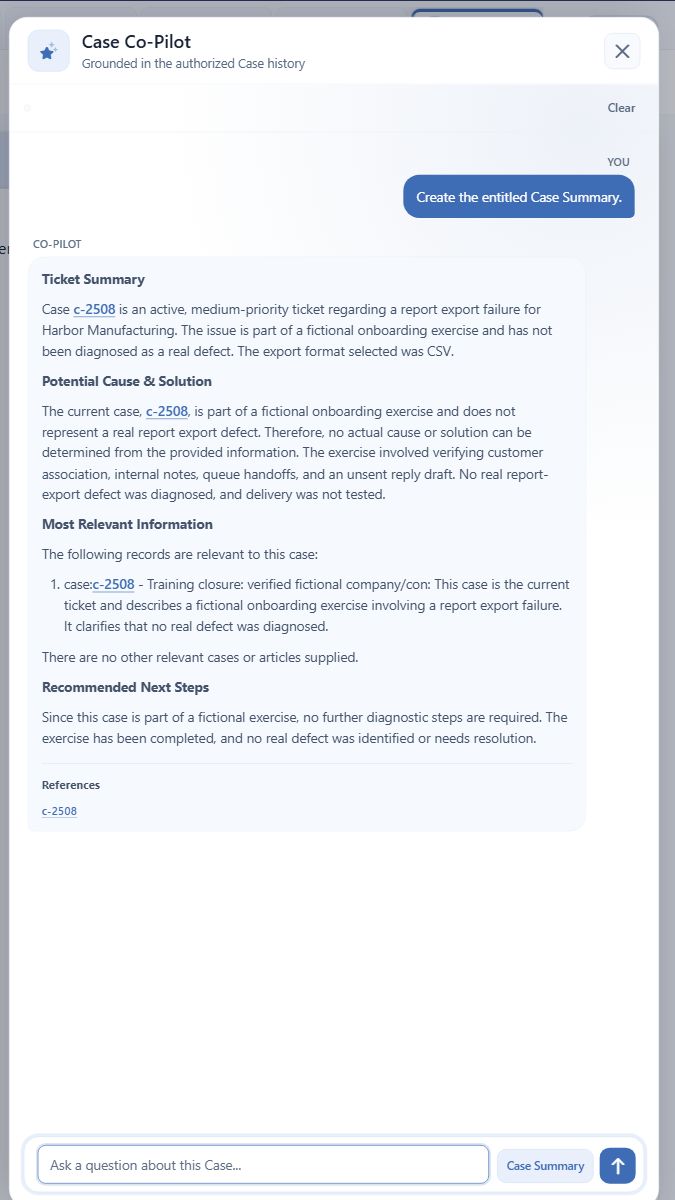
Case Co-Pilot summary of the fictional Harbor exercise. It identifies the scenario as training; agents must still verify claims of completion against their actual checks.
In the captured example, the summary correctly identifies the fictional exercise and untested delivery, but its “no further diagnostic steps” recommendation should not be treated as account readiness. The administrator still must finish the chosen channel’s delivery and access tests.
The Case summarization configuration switch controls new-case triage summaries from customer activity. It is separate from an agent invoking Summarize in Copilot. Verify the feature you actually intend to use.
An agent must review generated customer-facing text before sending it. Check recipients and visibility as well as the wording. A confident summary is not evidence that the case is resolved.
Keep customer-facing AI separate
A website widget’s assistant has its own AI behavior, Knowledge & Q&A, community source and handoff settings. Review chat widget setup before presenting it to customers.
Use maintained customer-readable articles for customer answers. Check the actual article access and answer sources. A staff-only article should not become a public dependency simply because an assistant can find it in an agent context.
Recover common failures
- Feature is absent: check account capability, module/role access and the policy scope.
- Summary omits important facts: improve the factual case record, then refine the prompt and retest.
- Classification is wrong: inspect the choices’ descriptions and ambiguous source information; correct the result rather than treating automation as authoritative.
- Answer cites inaccessible knowledge: review community, topic and article audience and choose an appropriate public/customer procedure.
- Language differs from expectation: check the setting for that specific feature; the internal output language is not a universal language override.
Completion check
- Each enabled capability has a defined purpose.
- Scope and sources are reviewed.
- Representative, ambiguous and incomplete examples were checked.
- Human review remains part of customer communication.
- Unverified capabilities remain deferred.
Previous: Enabling Escalations · Next: Intercom
Updated about 10 hours ago